
Appearance
Tags
A tag is a word your organization agrees on, stuck to a job, a room, or a photo. Tags are the answer to the questions the fixed fields cannot cover: which jobs are the storm batch, which rooms still need a second visit, which photos the carrier asked about.
They exist because a status can only be one thing at a time, and a claim is many things at once.
Where tags live
Three things can carry tags, and each answers a different question:
| You tag | To answer |
|---|---|
| An assignment | What kind of job is this? Storm batch, large loss, disputed, expedite. |
| A room | What is special about this space? Needs a return visit, water damage, contents only. |
| A media item | What is this photo for? Hero shot, serial number, needs recapture. |
A tag put on a job does not spread to its rooms or its media. They are independent labels, because "this room needs a return visit" is not true of the whole job.
The tag registry
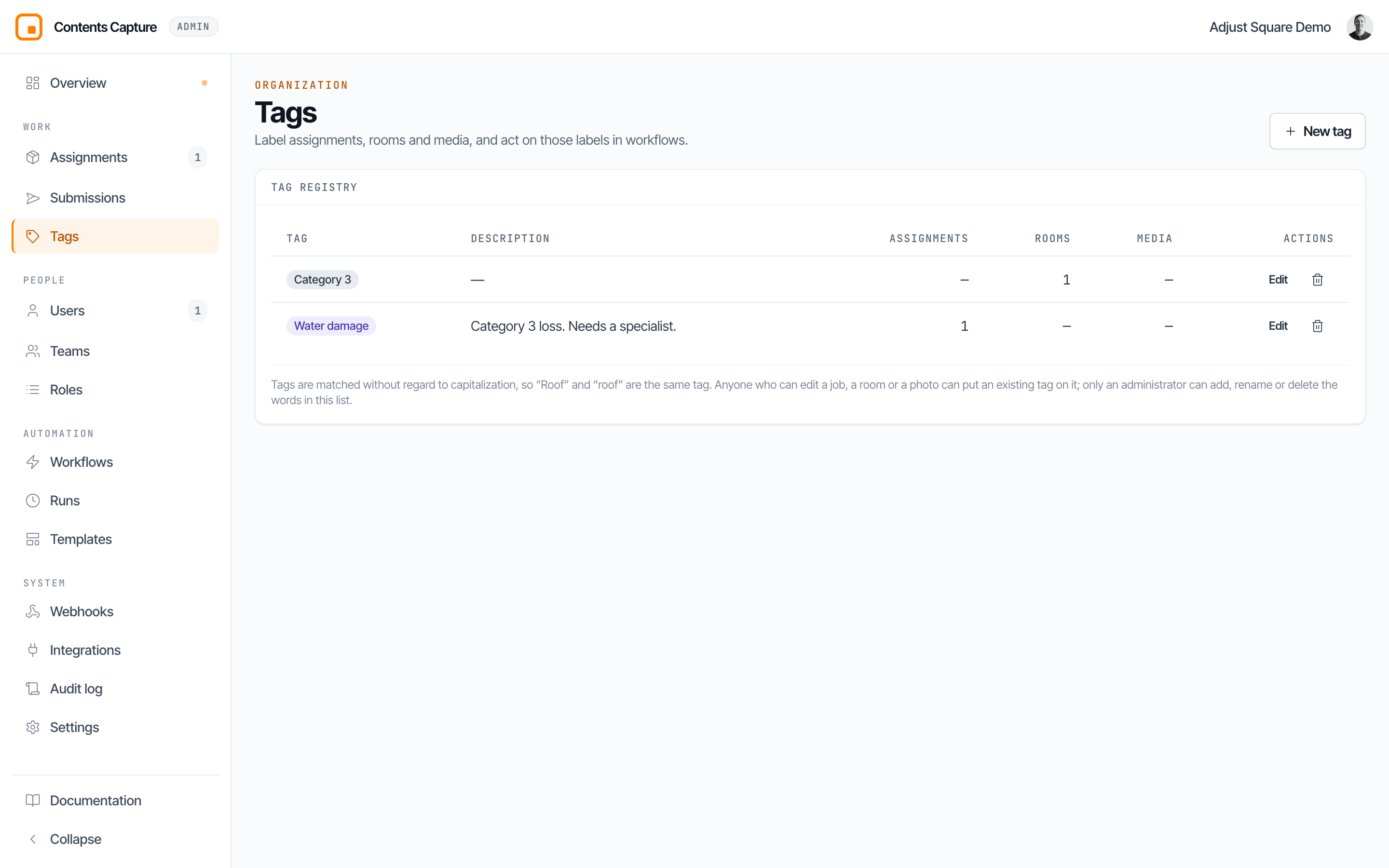
Open Work → Tags. Every tag your organization uses is listed here, with a colour, an optional description, and how many assignments, rooms, and media items currently carry it.
The counts are the reason this page exists. Renaming or deleting a tag reaches out and changes every item wearing it, so you should be able to see how many that is before you press the button.
Define a tag
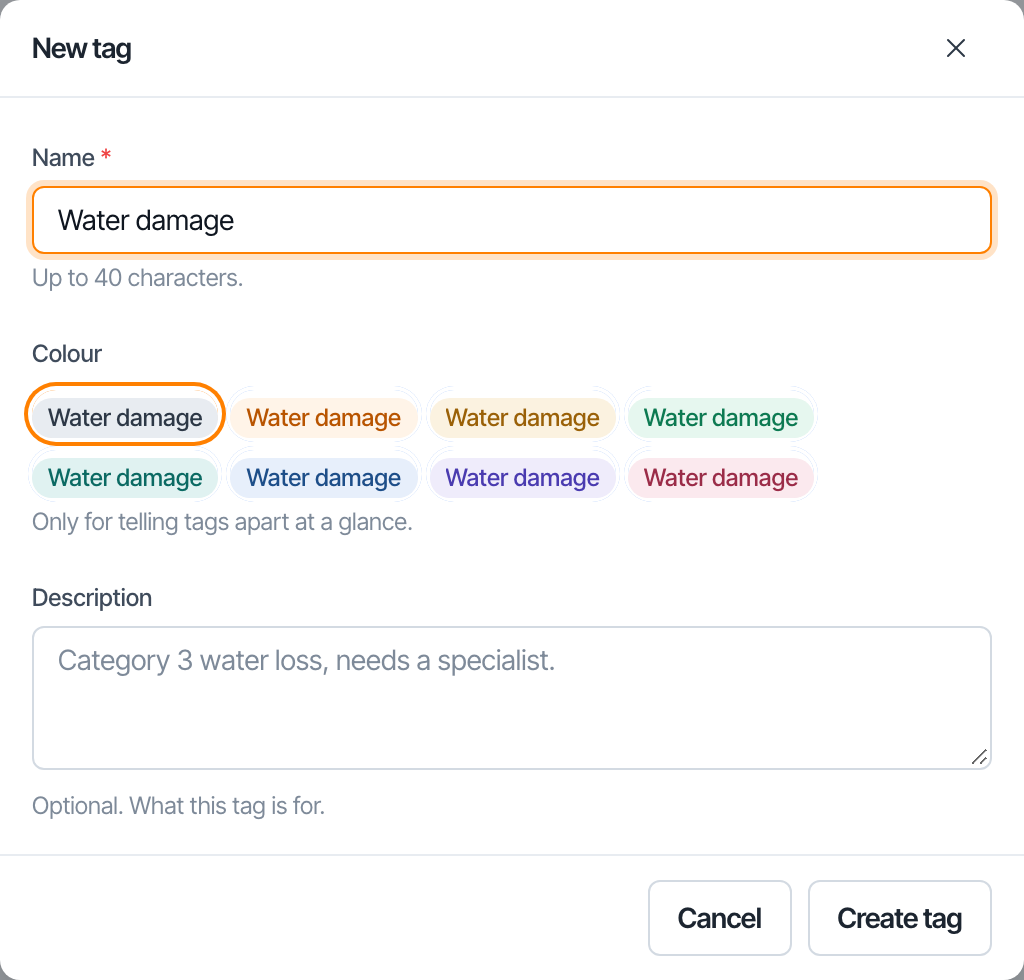
- Click New tag.
- Give it a name, up to 40 characters.
- Pick a colour. Colour is only for telling tags apart at a glance; it carries no meaning of its own.
- Optionally describe what the tag is for. Write this for the person who has to decide whether a job qualifies.
Tags are matched without regard to capitalization
"Roof", "roof", and "ROOF" are the same tag. So are "Water damage" and "water damage" with a double space. You cannot create a second tag that differs from an existing one only in capitalization or spacing, and typing an existing tag in a different case stores the spelling the registry defines.
Punctuation is not folded. "water-damage" and "water damage" are two different tags, because a hyphen is a choice somebody made and guessing it away would rewrite their data.
Tags you never defined
Anyone who can edit a job, a room, or a photo can type a word that has never been used before, and it becomes a tag immediately. It appears in this registry in the default colour, ready for you to recolour or describe.
This is deliberate. Field work does not stop for vocabulary approval, and a registry that disagreed with what is actually on the media would be worse than no registry. You get the complete list of words in use, not a curated subset.
Rename a tag
Click Edit, change the name, and save. Every assignment, room, and media item carrying the old name is updated, including on phones the next time they sync. The confirmation tells you how many items changed.
You cannot rename a tag onto a name another tag already has. That would silently merge two vocabularies, and the console refuses rather than guessing that is what you wanted.
Changing only the colour or description touches nothing else.
Delete a tag
Click the bin icon. The dialog tells you how many items will lose the tag before you confirm. Deleting really removes it: the tag comes off every item, rather than being left orphaned on a few thousand rows.
Deleting a tag can break a workflow
Any workflow that looks for the tag stops matching, and any workflow that applies it starts creating it again from scratch. Check Workflows before deleting a tag that automations use.
Tagging an assignment
Open any assignment. The tags sit under the headline, visible from every tab, because how a job is classified is not a detail you should have to go looking for.
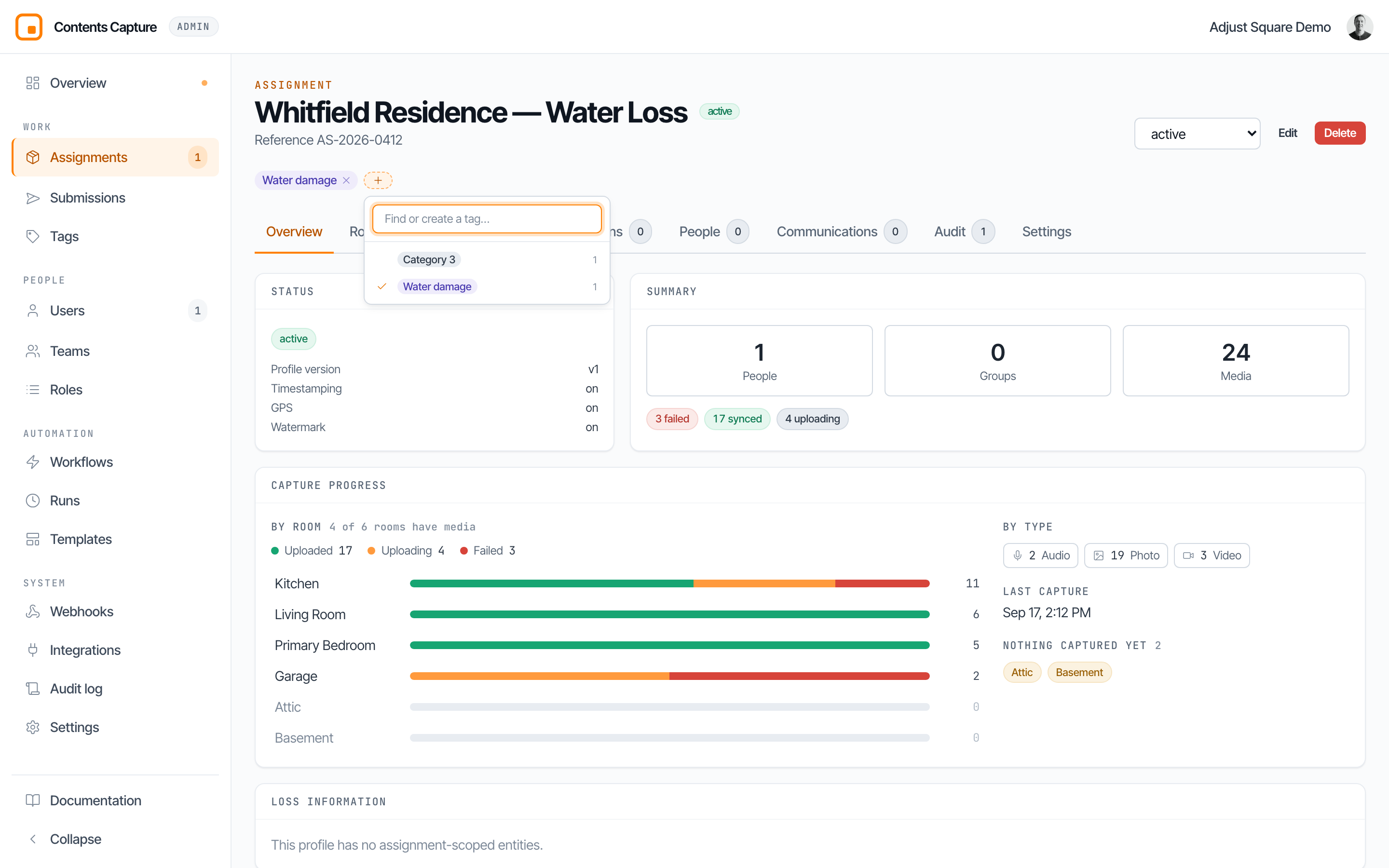
Click Add tag to open the picker. It lists your organization's tags with the ones already on this job ticked, and a search box that doubles as a way to create a new one. Click a tag to add it, click it again to take it off, or use the small cross on a chip.
Needs the assignment.manage permission.
Tagging a room
Open an assignment and go to the Rooms tab. Each room has a Tags column with the same picker.
Needs the location.write permission, which every member has. A capturer can label their own rooms.
Tagging media
Open an assignment's Media tab.
- One item at a time: click a photo to open it, and edit its tags in the side panel.
- Many at once: click Select, tick the items, and use the bulk Tag action to add or remove tags across all of them.
Needs the media.capture permission.
Finding things by tag
- Assignments: the Tags filter on the Assignments page, and a Tags column you can turn on from Columns. Picking two tags widens the list rather than narrowing it: you get jobs carrying either one.
- Media: the Tags filter in the media browser, which shows counts beside each tag.
- Search: typing in the Assignments search box matches tag names as well as job names and references.
Every filter lives in the address bar, so a link to "all the storm-batch jobs" opens exactly that for whoever you send it to.
Who can do what
| Action | Permission | Who has it |
|---|---|---|
| See the tag list | media.read | Everyone, including observers |
| Put an existing tag on a photo | media.capture | Members and above |
| Tag a room | location.write | Members and above |
| Tag an assignment | assignment.manage | Team admins and above |
| Add, rename, or delete a tag | tag.manage | Team admins and above |
The split is the point. A capturer can label their own work without being able to redefine the words everyone else's work is filed under.
Tags and the field app
Media tags are shared with the phone. Adjusters tag photos from the app's tag sheet and quick-capture chips, and those tags are the same tags you see and filter on here. A tag an adjuster types in the field appears in the registry like any other.
Assignment and room tags are console-only. The app has no screen for them, and the server ignores any attempt by a device to change them, so a phone that has been offline since before you tagged a job cannot quietly undo it by syncing a room rename.
Media tags follow last-writer-wins
Because both sides can tag a photo, the most recent edit wins. If you tag a photo in the console while the adjuster is offline and they later edit that photo's tags on the phone, their list replaces yours. For labels you need to stay put, tag the assignment or the room instead.
Limits
- A tag name is capped at 40 characters.
- One item can carry up to 24 tags. A workflow cannot grow a job's tag list past that.
Using tags in workflows
This is where tags stop being labels and start being automation. A workflow can read a tag, act on one being applied, and apply or remove one itself. See Tags in workflows.
Questions? Email [email protected] and a human will respond.