Appearance
Structure and terminology
ContentsCapture organizes every company the same way: an Organization contains Business Units, Business Units contain Teams, and Teams contain Users, with assignments living inside teams.
The hierarchy
Organization
└── Business Unit
    └── Team
        └── Users
A realistic insurance example:
| Level | Example | Purpose |
|---|---|---|
| Organization | "Meridian Adjusting Group" | Your whole company. One org per company. |
| Business Unit | "West Coast Catastrophe" | A division, region, or line of business. |
| Team | "Sacramento CAT Crew" | The people who actually work losses together. |
| Users | Individual adjusters and leads | Members of one or more teams. |
Assignments are always created inside a team. When a catastrophe hits, you might spin up a new business unit for the event with several teams underneath it, then archive or delete the structure after the response winds down.
Creating organizations
Most companies need exactly one organization. If you operate distinct companies, you can add more:
- Go to Settings and find the Organizations card.
- Click New organization.
- Enter a name and confirm.
When you create an organization, a default business unit and team are created automatically and you become its org admin. The org table lists each organization with its name, org ID, and an active badge for the one you are currently working in.
Per organization you can:
- Switch: make it the org you are viewing and managing.
- Rename: change the display name.
- Delete: only available when you belong to more than one org.
Deleting an organization hides it, it does not erase it
Deleting an organization removes it from your console, but its data is retained and can be restored by support. If you delete one by accident, contact support to have it restored.
The Crews page
Open Field → Crews to manage business units and teams. (The page name reflects your terminology settings; see Terminology below.)
The page shows one card per business unit with a badge showing how many teams it contains. Per business unit you can:
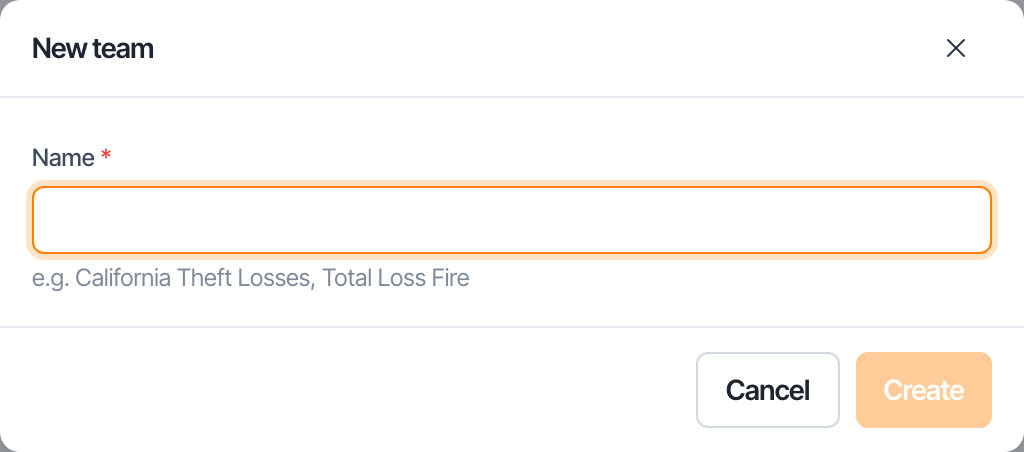
- New Team: add a team inside that business unit.
- Rename: change the business unit name.
- Delete: remove the business unit and every team inside it.
Deleting a business unit is permanent
The confirmation reads "Permanently delete {name} and its teams? This can't be undone." Everything under that business unit is removed. Export or archive anything you need before confirming.
Each team row shows the team name as a link to its detail page and a Watermark on/off chip so you can see capture watermark status at a glance, plus Rename and Delete actions.
The New Business Unit wizard
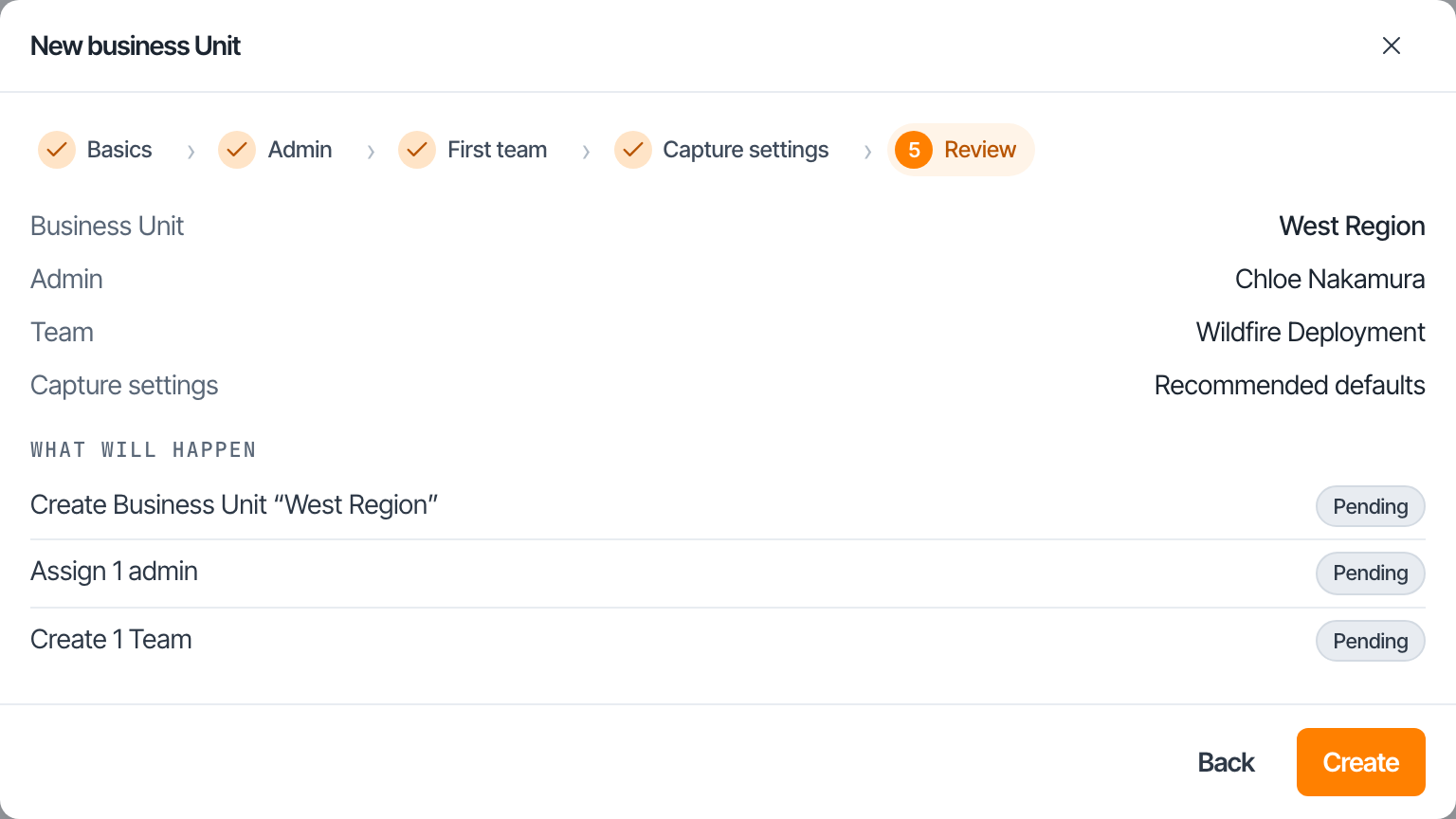
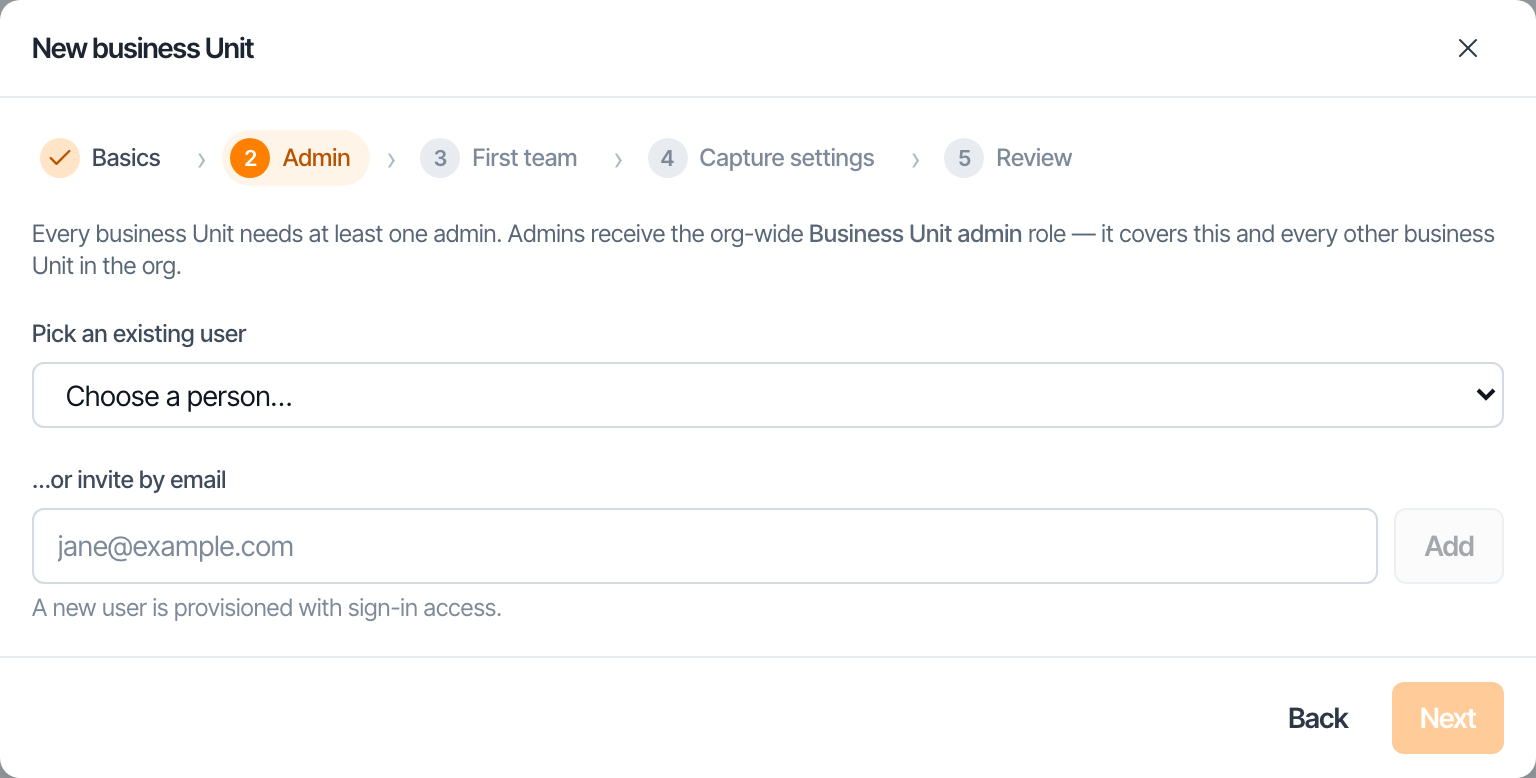
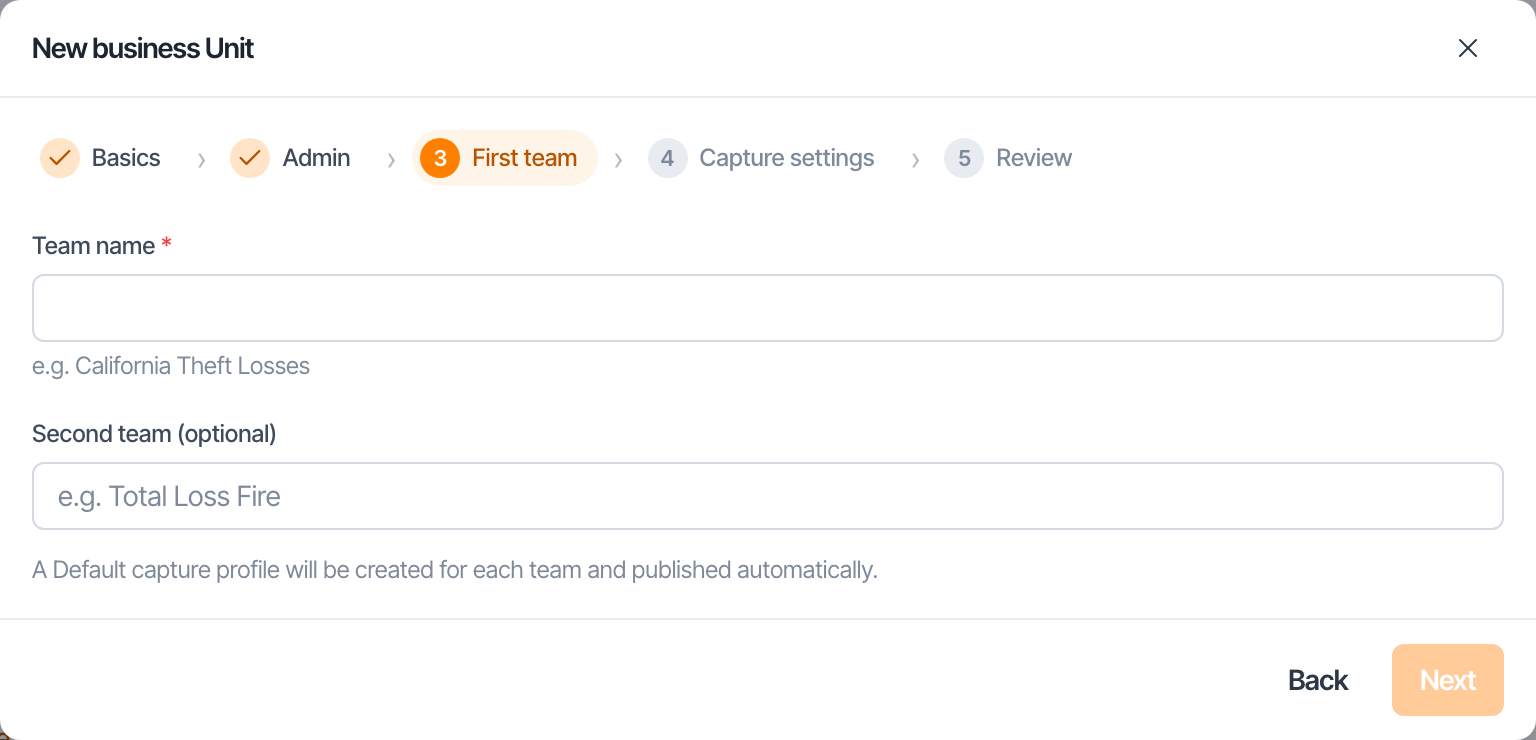
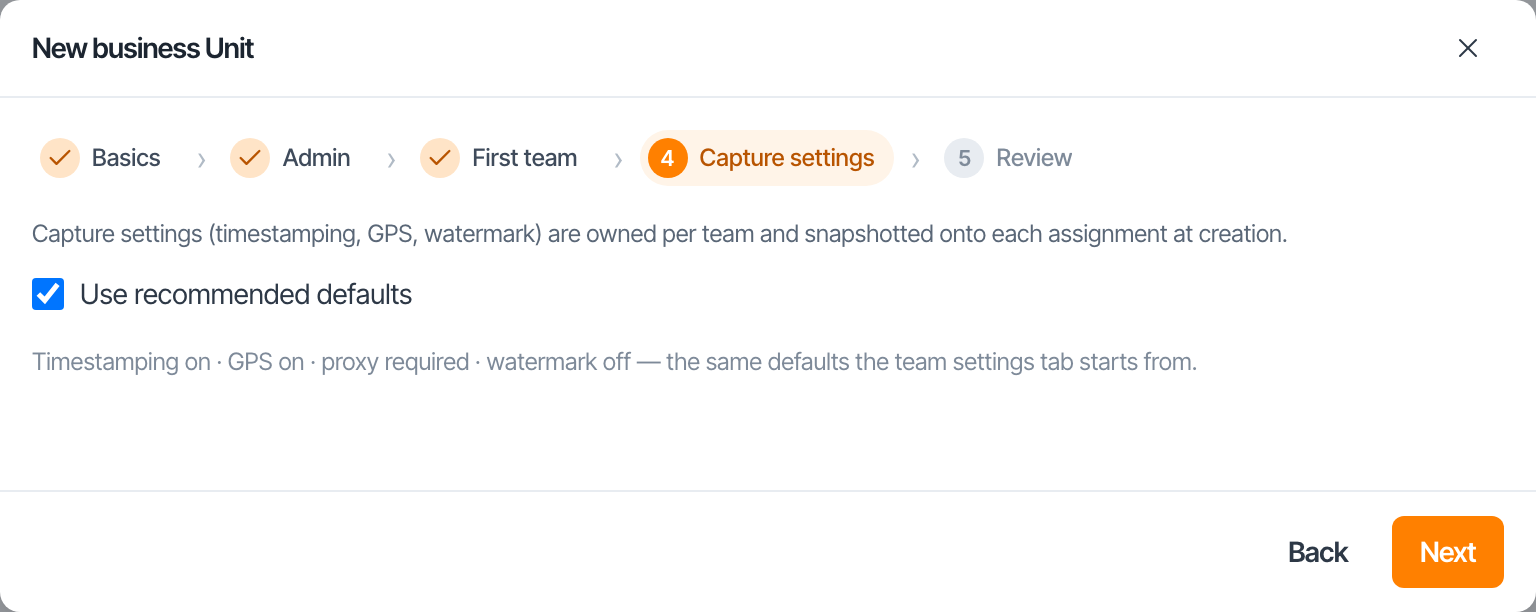
Click New Business Unit to launch a five-step wizard:
- Basics: name the business unit.
- Admin: seat an existing user as the business unit admin, or invite someone by email. They are granted the business unit admin role at org scope.
- First teams: create the initial teams inside the unit.
- Team settings: set the default capture settings for those teams. See Capture settings.
- Review: check everything, then create.
The wizard runs as a staged pipeline. If something is interrupted (a network drop, a closed tab), you can resume and retry without starting over; records that were already created are kept.
Team detail
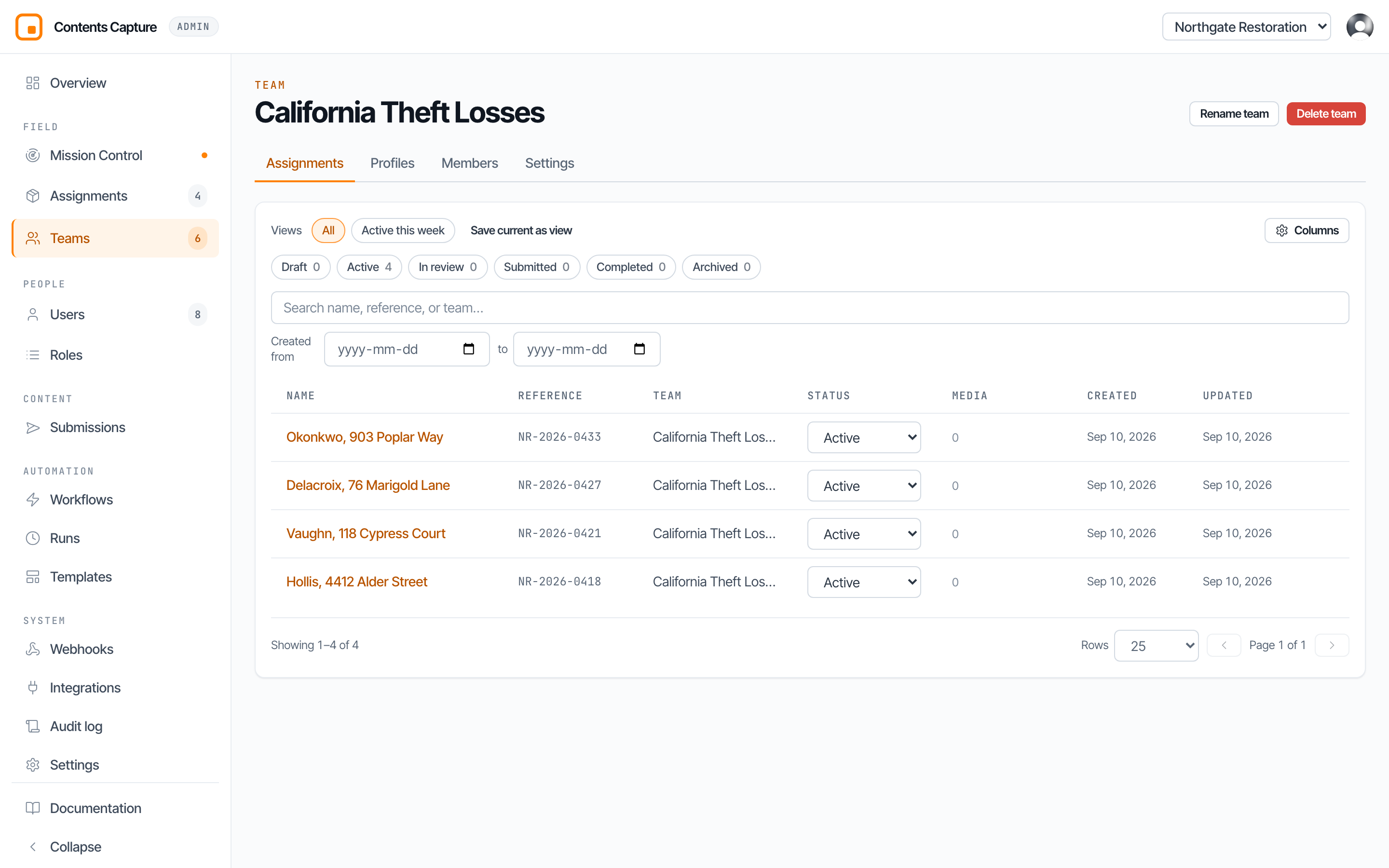
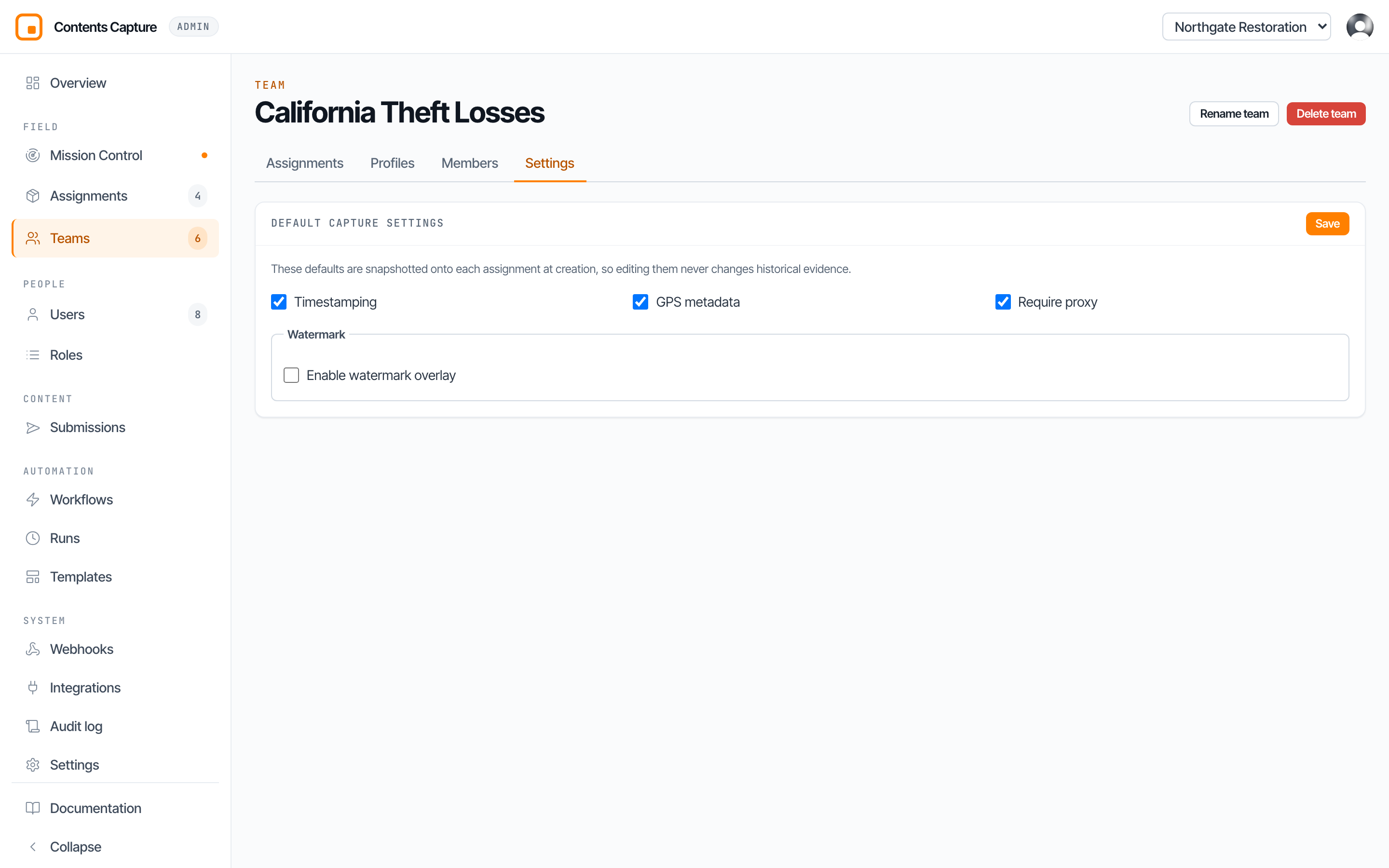
Click a team name to open its detail page, which has four tabs:
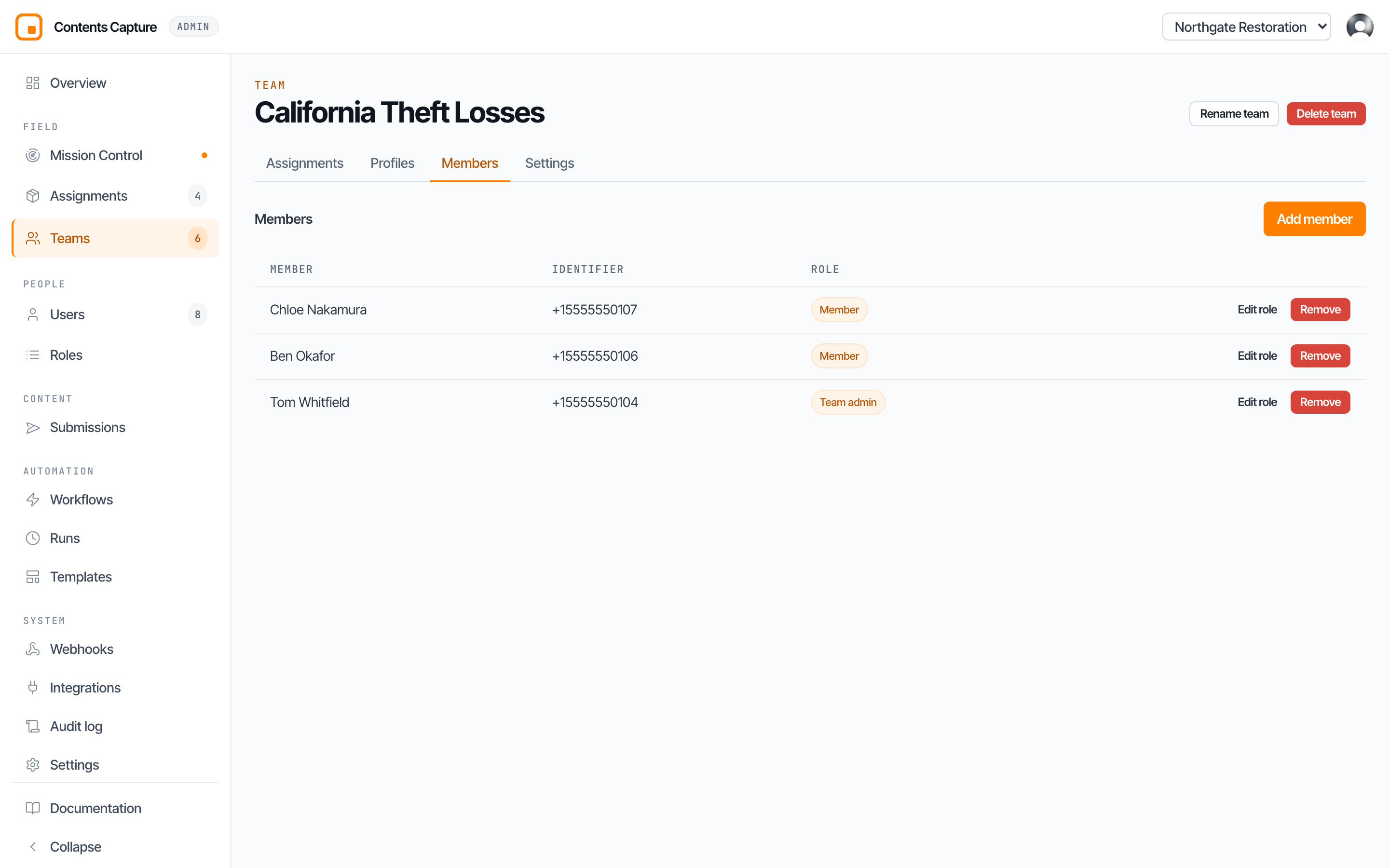
| Tab | What it holds |
|---|---|
| Assignments | The assignments explorer, locked to this team. |
| Profiles | The capture profiles owned by this team. See Capture profiles. |
| Members | The team roster and per-member roles. See Team members. |
| Settings | The team's default capture settings. See Capture settings. |
The header offers Rename Team and Delete Team.
Deleting a team removes its work structure
The delete confirmation warns: "Its assignments, profiles, and members will be removed." If the team holds assignments you still need, move or archive that work first.
Terminology
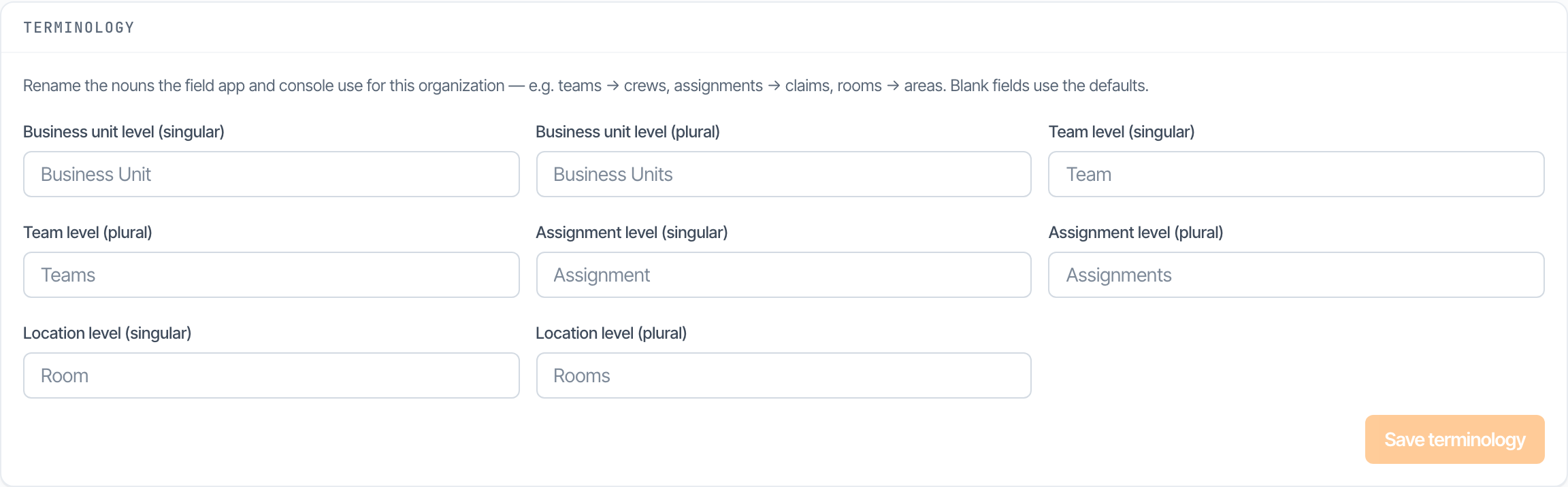
Every company talks differently. Go to Settings → Terminology to rename the eight nouns the platform uses:
- Business unit (singular and plural)
- Team (singular and plural)
- Assignment (singular and plural)
- Location / room (singular and plural)
For example, rename Team to Crew and every label in both the admin console and the mobile app updates, which is why the navigation item appears as "Crews" in many organizations. Leave a field blank to fall back to the default. This guide uses the default nouns, but your console may show your renamed versions everywhere.
This guide uses default names
When this guide says "Team" and your console says "Crew", they are the same thing. Terminology renaming is cosmetic and does not change any behavior or permission.
When to split business units versus teams
There is no wrong answer, but these guidelines work for most adjusting firms:
- Split by business unit when the groups operate independently. Different regions, different lines of business (residential vs commercial), or different carrier contracts with their own admins are good candidates. Each business unit can have its own admin who manages everything beneath it.
- Split by team when the groups share oversight but work different losses. Crews within a region, day and night shifts, or per-event rosters on a catastrophe response are usually teams.
- Prefer fewer layers. If your whole company is one flat roster, a single business unit with a handful of teams is simpler to run than a deep tree.
- Use assignments, not teams, for individual losses. A team is a durable group of people; an assignment is a unit of work. Create assignments freely and archive them when done.
Organization settings
Settings holds the organization's name, its terminology, and the policies that apply everywhere.
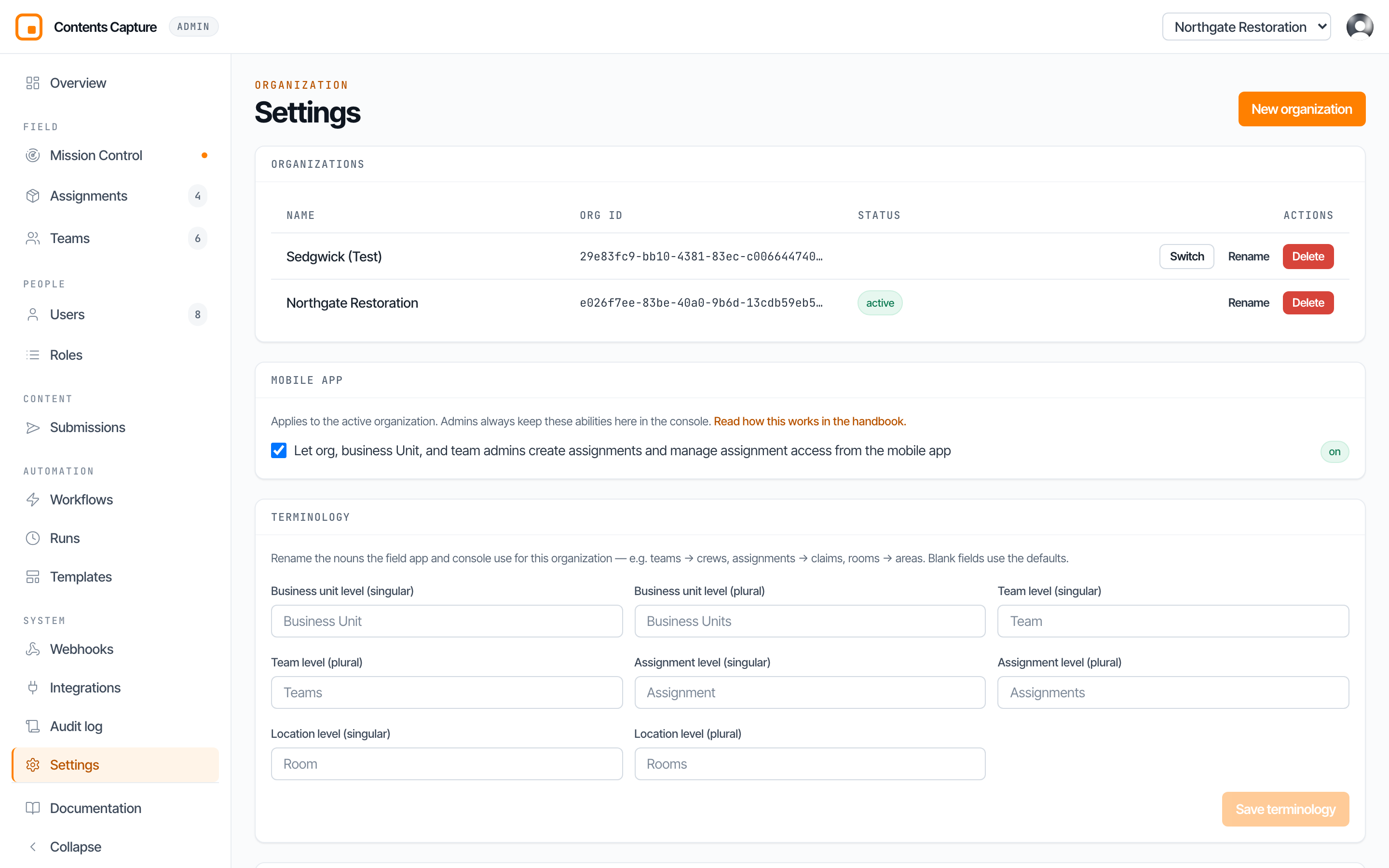
If you belong to more than one organization, the switcher in the top right decides which one you are administering. Everything on screen follows it.

Terminology
Your organization's own words for the hierarchy. Rename Assignments to Claims, or Rooms to Areas, and the whole console and mobile app follow.
Mobile policy
What the field app is allowed to do, including whether admins may create assignments and grant access from their phone.

Business units and crews
Teams lists the business units and the crews inside them.
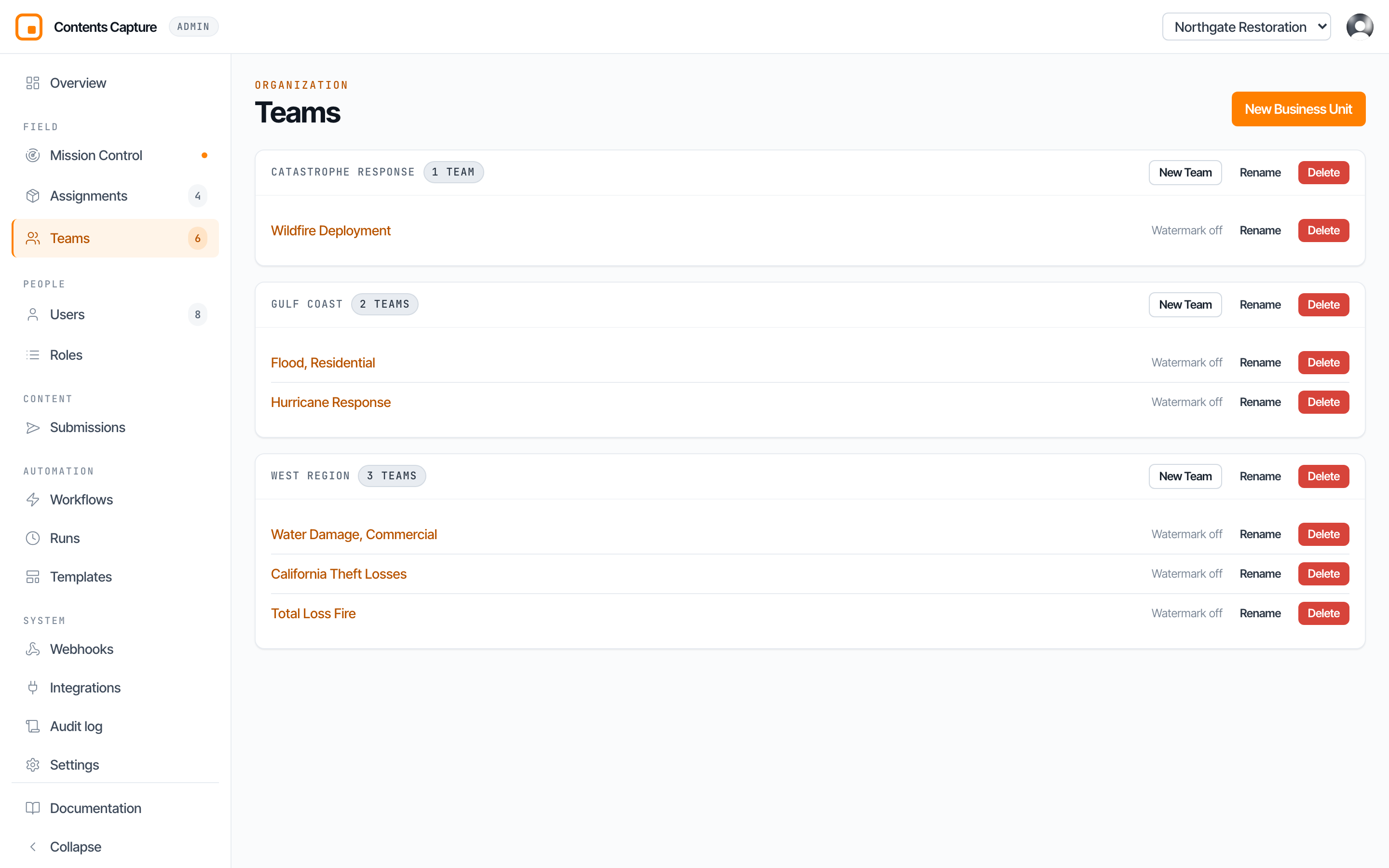
A business unit is a division of the company. It sits between the organization and the crews that do the work, which is what makes it possible to give a regional manager everything in their region and nothing outside it.
The New Business Unit wizard
Start with its name.
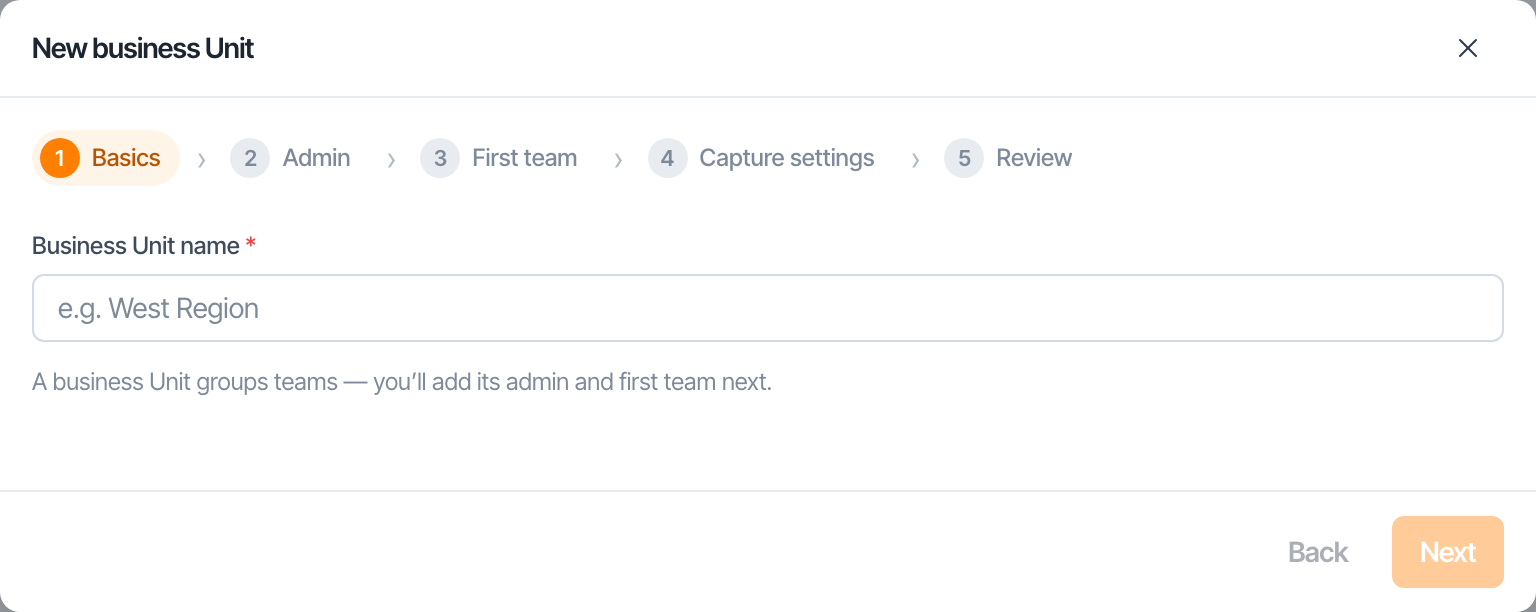
Name its administrator, who gets admin over everything inside it.
Create its first crew, so it has somewhere for work to live.
Choose the capture settings its assignments inherit.
Review, then create.