
Appearance
Sign in
The admin console lives in your browser at admin.contentscapture.com. There is nothing to install.
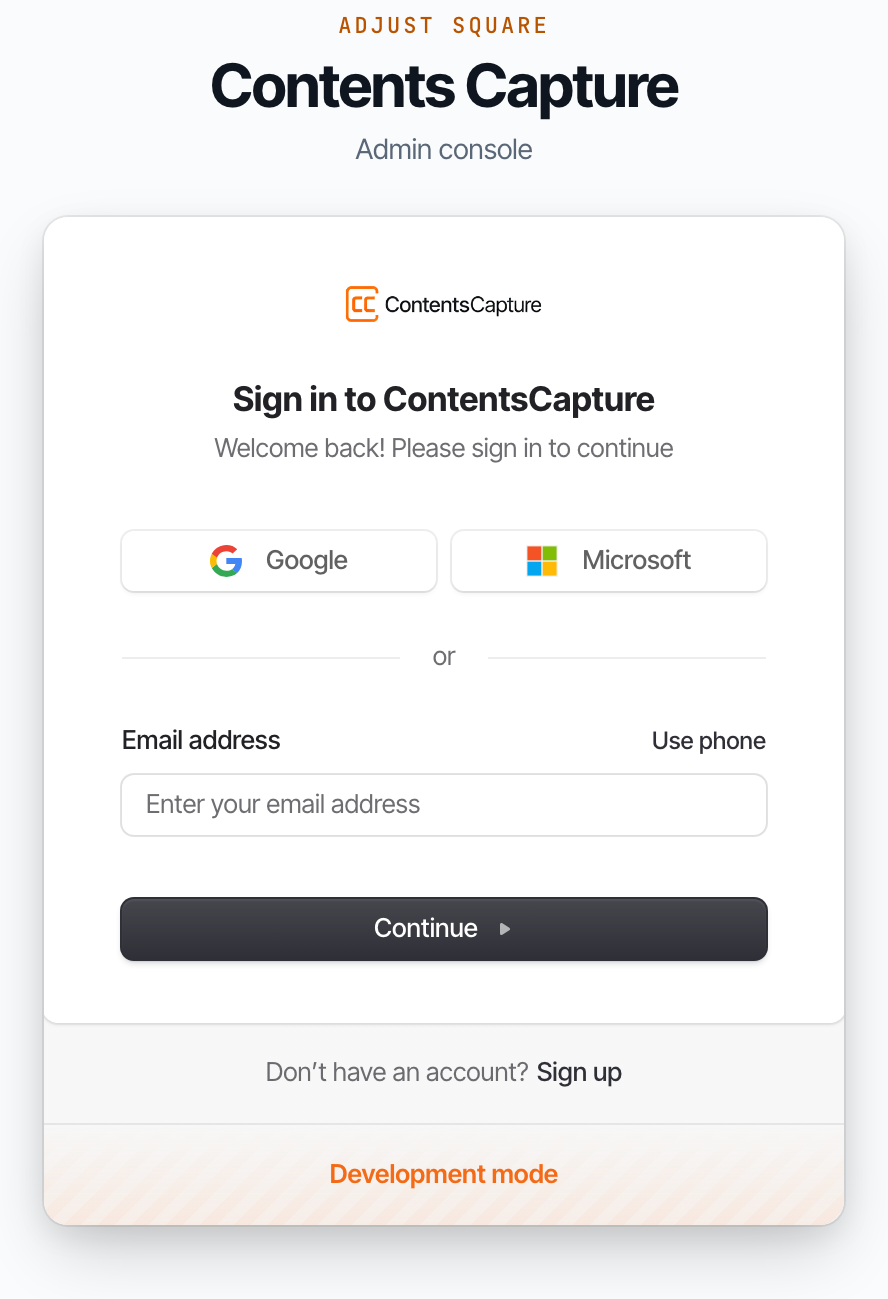
How to sign in
ContentsCapture is sign-in only. There is no "create an account" step: an administrator adds you first, and only then can you sign in. If you have not been added yet, signing in will tell you it cannot find your account.
- Go to admin.contentscapture.com.
- Enter the email address or phone number your administrator added you with.
- We send you a short code. Enter it.
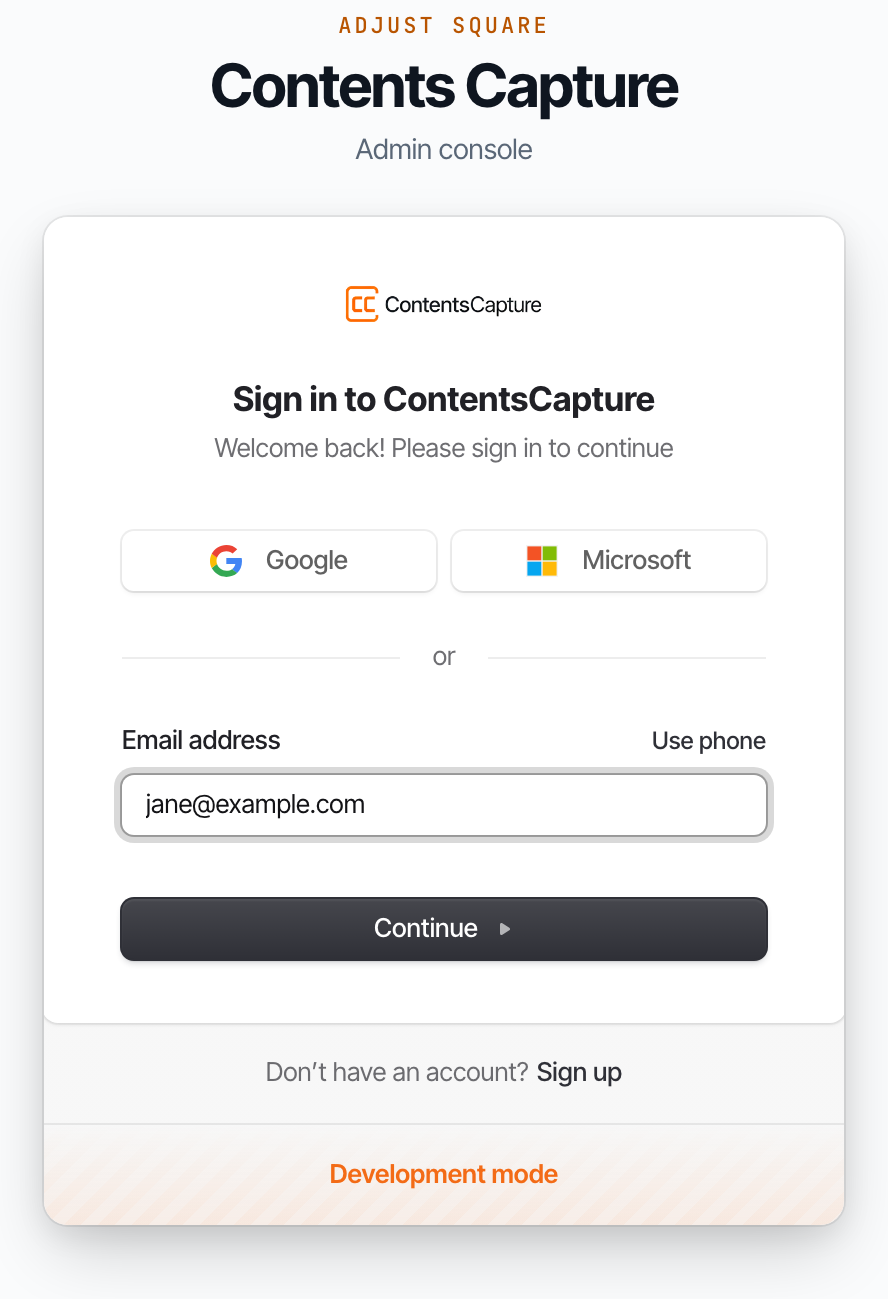
There is no password to remember or lose. Each sign-in uses a fresh code.
Use the same address every time
Your access is tied to the exact address you were added with. Signing in with a different one reaches a different account, usually an empty one.
What you see first
You land on Overview, the live picture of what your crews are doing right now.
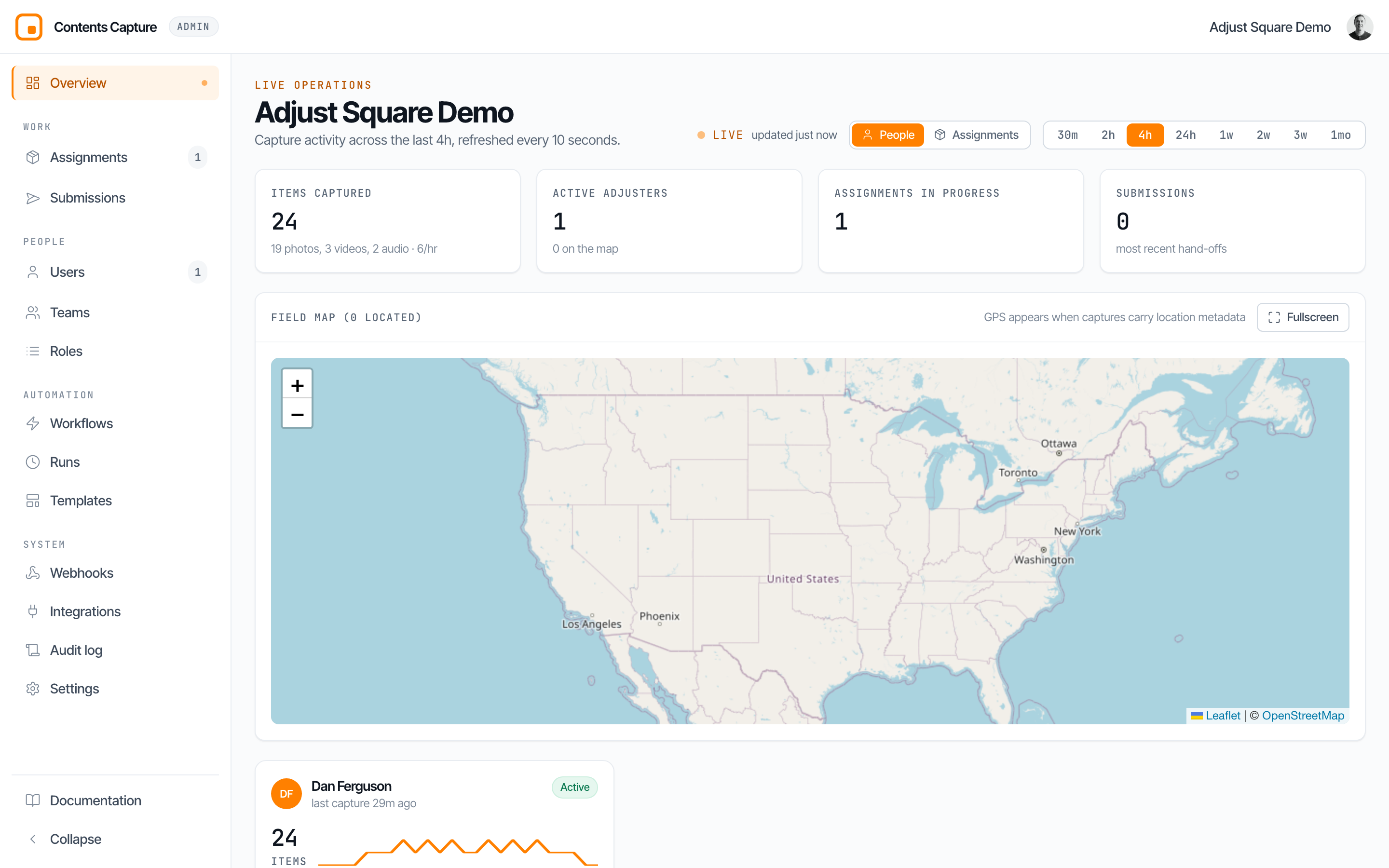
How much of it you can see depends on your role. Field activity across the whole organization is limited to org admins; everyone else sees the rest of the page with that section hidden. See Roles and permissions.
Switching organization
If you belong to more than one organization, the switcher sits in the top right. Everything on screen follows it: assignments, users, submissions, settings.

Seeing "No organization" means your sign-in worked but no organization has been linked to it yet. That is an administrator's job, not something you can fix from here.
Signing out
Use the avatar menu in the top right.
If you cannot get in
- "Couldn't find your account." The address is not registered. Check for a typo, then ask your administrator which address they used.
- The code never arrives. Check spam for email. For phone, confirm the number is the one on file.
- You sign in but see nothing. You are signed in but not attached to an organization, or you have no assignments yet.
Still stuck? Email [email protected] and a human will respond.