Appearance
Roles and permissions
Every person in your organization holds exactly one of six roles, and the role decides what they can see and do across the console and the mobile app.
The six roles
| Role | What they do |
|---|---|
| Org admin | Everything. Manages the organization, all business units and teams, users, profiles, assignments, workflows, webhooks, and integrations. The only role that sees org-wide field activity on the Overview dashboard, and the only one that can manage webhooks and integration tokens. |
| Business Unit admin | Everything an org admin can do, except managing webhooks and integration tokens. Typically runs a division or region. |
| Team admin | Runs teams day to day: manages team members, builds and publishes capture profiles, creates and manages assignments, grants assignment access, and reads the audit log. Often a team lead or desk adjuster supervisor. |
| Member | Captures media, works rooms and assignments in the field app, and views media. The standard role for field adjusters. |
| Collaborator | Same capture abilities as a member, but only on assignments they were specifically invited to. Ideal for contractors and outside adjusters. |
| Observer | View only. Can read media on assignments they are invited to, but cannot capture or change anything. Good for carrier representatives or managers who need visibility without access to capture. |
The 14 permissions
Behind the scenes, each role is a bundle of permissions. The console enforces them server-side, so they cannot be bypassed.
| Permission | Plain meaning |
|---|---|
team.manage | Create, rename, and delete teams, and manage their members and settings. |
schema.manage | Create, edit, publish, and archive capture profiles. |
assignment.create | Create new assignments, including spreadsheet imports. |
assignment.manage | Edit assignment details, change statuses, and delete assignments. |
assignment.access.grant | Invite collaborators and observers to an assignment and revoke their access. |
location.write | Create, edit, reorder, and delete rooms on an assignment. |
media.capture | Capture photos, video, and audio in the field app. |
media.read | View captured media in the console and app. |
media.delete | Delete media items (soft delete; the file is retained on the server). |
person.write | Add and edit people records. |
tag.manage | Add, rename, recolour, and delete the organization's tags. Putting an existing tag on something needs only that thing's own edit permission. |
webhook.manage | Create and manage webhook endpoints. Org admins only. |
integration.manage | Create and revoke integration tokens. Org admins only. |
audit.read | View the audit log and workflow runs. |
Who can assign which role
- Only org admins can assign the org admin role. The role dropdown disables it for everyone else with the note "Only org admins can assign this role".
- Collaborator and observer are assigned at the assignment level, not on the Users page. Org, business unit, and team admins grant them from the assignment Access tab when inviting someone by email or phone. See Assignment-level invitations.
- Business unit admins, team admins, and members are assigned when you add or edit a user on the Users page.
The Roles page
Open People → Roles to see the page titled "What each role can do, and who holds it." It shows:
- A card per role with a description, the permission badges it carries, and how many people currently hold it.
- A Role assignments table listing every user with an inline role selector, so you can change roles in place without opening the user editor.
Custom roles cannot be created
The six roles are a fixed set enforced by the server. There is no way to create a custom role or tweak an individual permission. If a person needs more or less access, choose the closest role or use assignment-scoped invitations to narrow their reach.
Org membership versus assignment access
These are two separate layers, and understanding both prevents most access confusion:
- Organization membership (the Users page) puts a person in your org with a role. Members and admins see the org's teams and assignments according to their role and your assignment visibility settings.
- Assignment-scoped access (the assignment Access tab) grants a specific person, often someone outside the org, access to one assignment as a collaborator or observer. It does not make them an org member, and revoking it does not affect any org membership they have.
A contractor who only ever works one loss never needs org membership: invite them as a collaborator on that assignment, and revoke the invitation when the work is done.
Seeing the matrix
Roles in the sidebar lists every role and exactly what it may do.
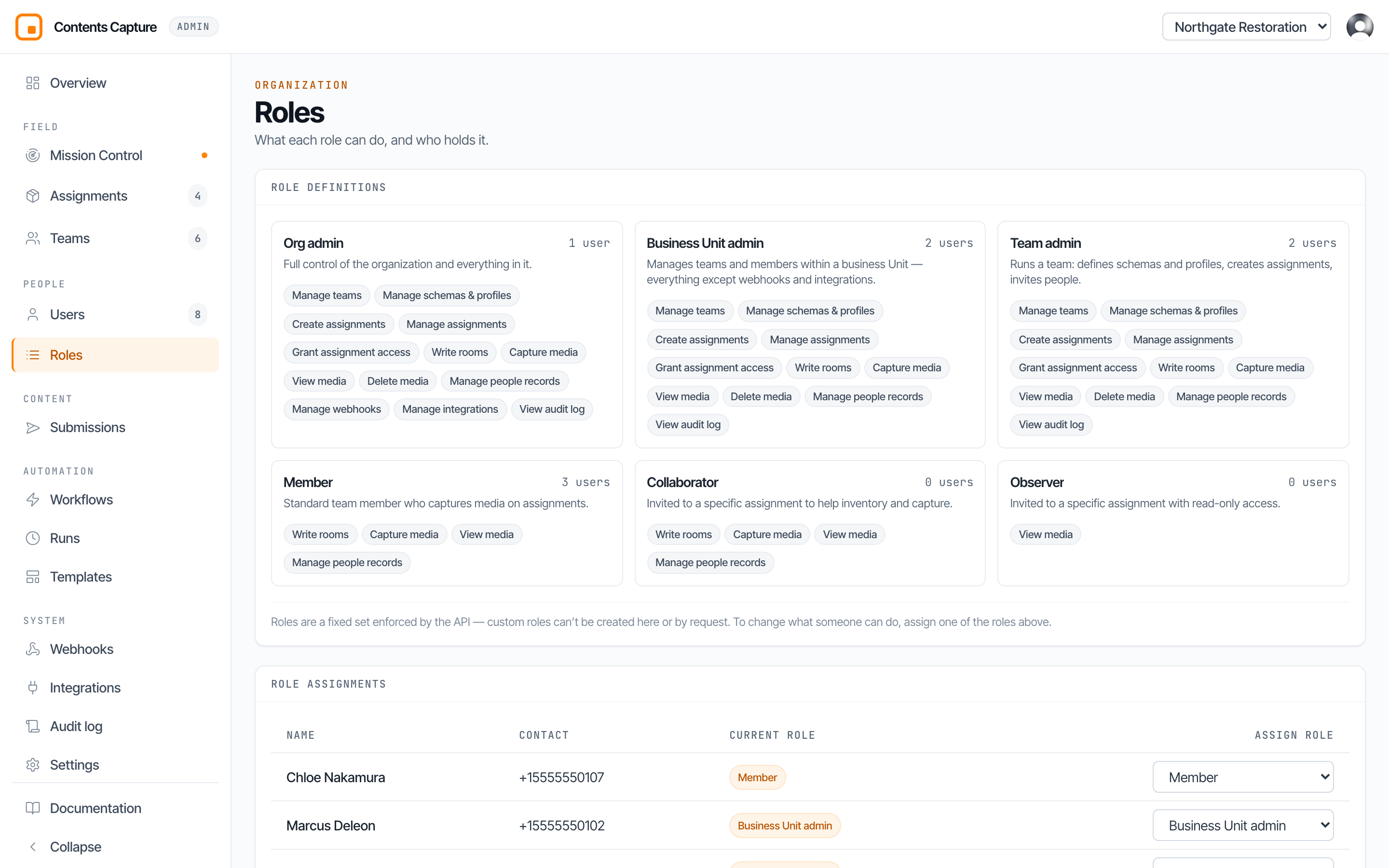
The permission grid is the authoritative answer to "can this person do X". It is read-only: roles are fixed so that access is predictable and auditable.
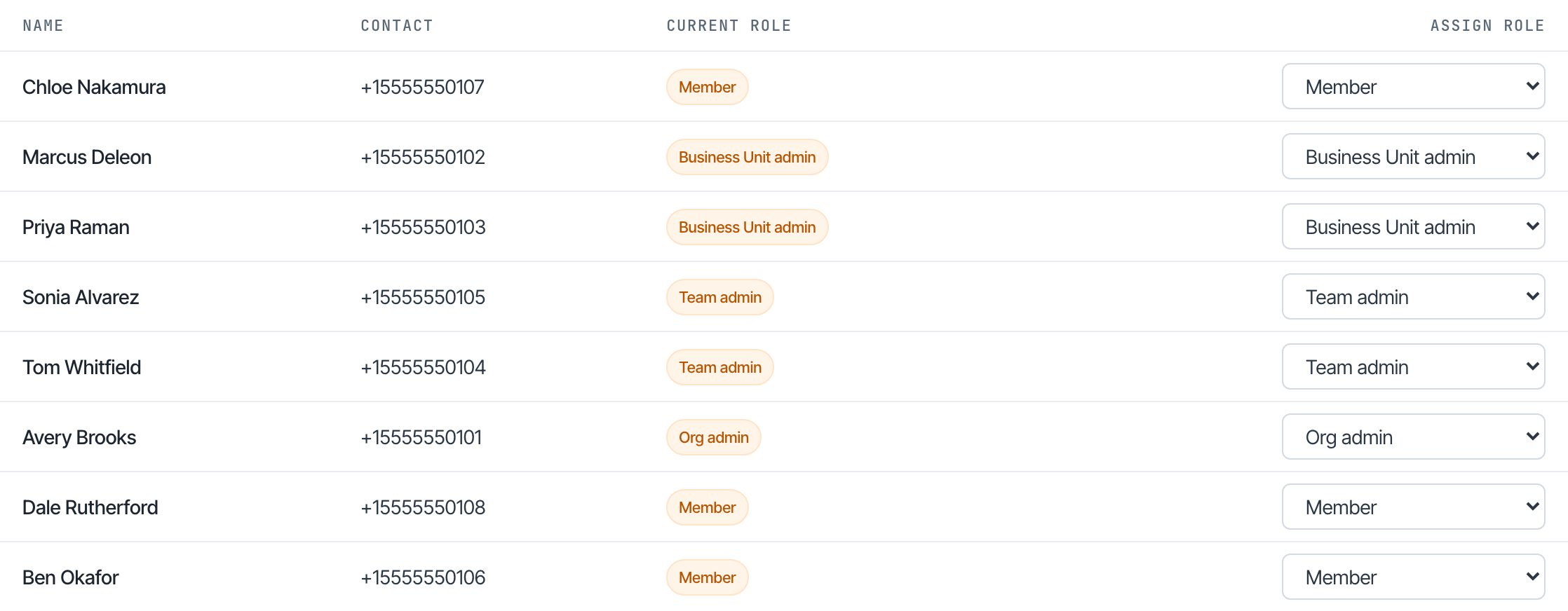
The assignable column shows which roles you may grant to somebody else. You can never grant a role above your own.