
Appearance
Assignment detail
Open any assignment to get its own screen, organized as tabs. Every tab carries a count, so the shape of the job is readable before you open anything.
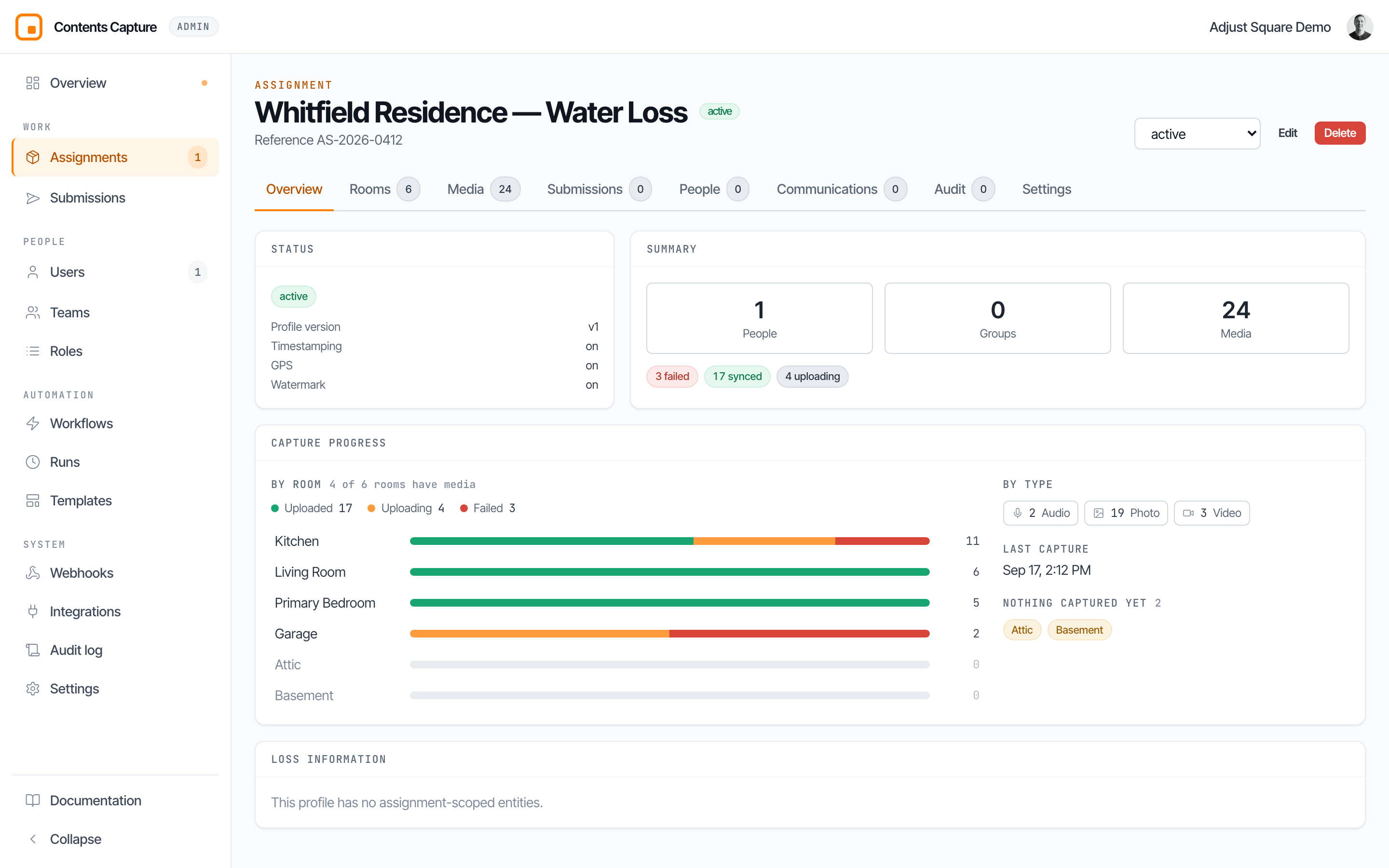
The header shows the name, its status, and the reference. With the assignment.manage permission you also get the status dropdown, Edit and Delete.
Below it sit the job's tags. They stay visible on every tab, because how a job is classified is not a detail you should have to go looking for. Add tag opens the picker; the small cross on a chip removes one. Editing them needs assignment.manage.
Overview
Four cards.
Status carries the current status, the profile version this assignment was created from, and whether timestamping, GPS and watermarking are on.
Summary counts people, groups and media, with a breakdown by sync state.
Capture progress answers the question the job is usually opened for: what is left to shoot, and is anything stuck.
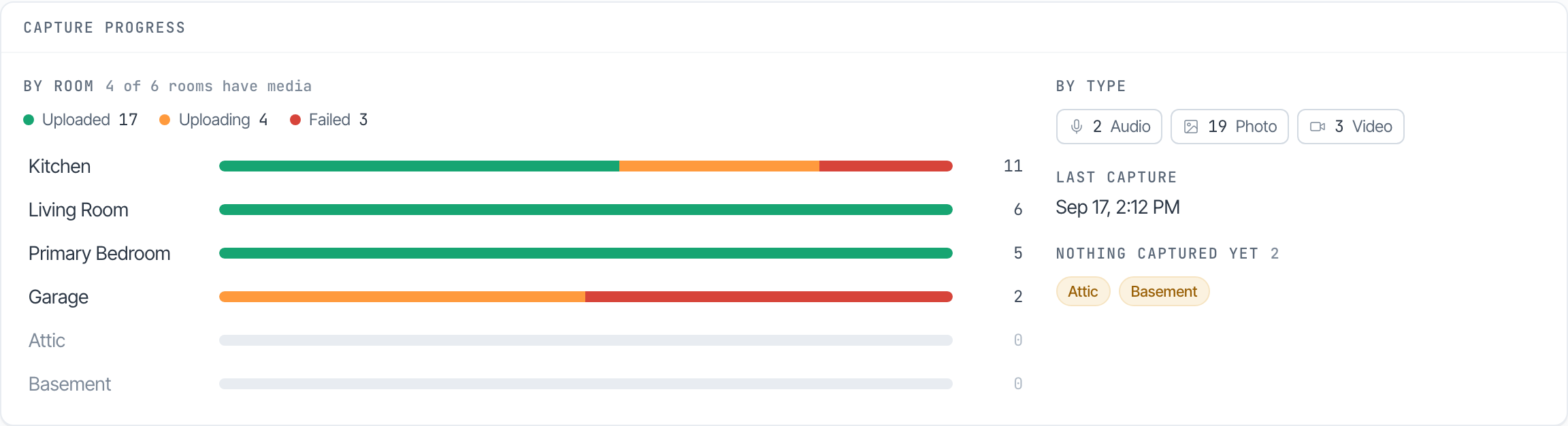
- By room: one bar per room, busiest first. Each bar is split by what happened to those items: green for uploaded, orange for still uploading, red for failed.
- Every bar is the same length on purpose. The bar describes how far along a room is, not how much it holds; the count sits beside it. A fully uploaded room reads as a complete green bar whether it has 1 item or 20.
- A bar that is part orange or part red is telling you exactly where items are stuck. Red needs somebody to act; orange resolves on its own.
- By type: how many photos, videos and voice notes.
- Last capture: when anything last arrived, so a stalled job is obvious.
- Nothing captured yet: rooms with no media at all. This is the gap list, and usually the fastest answer to what is left.
Click any room to open Media filtered to it.
Loss information holds the profile's assignment-scoped fields. With assignment.manage you can edit them inline; every edit is written to the audit log.
Rooms
The rooms captured in, their order, who each is assigned to, and how much media each holds.
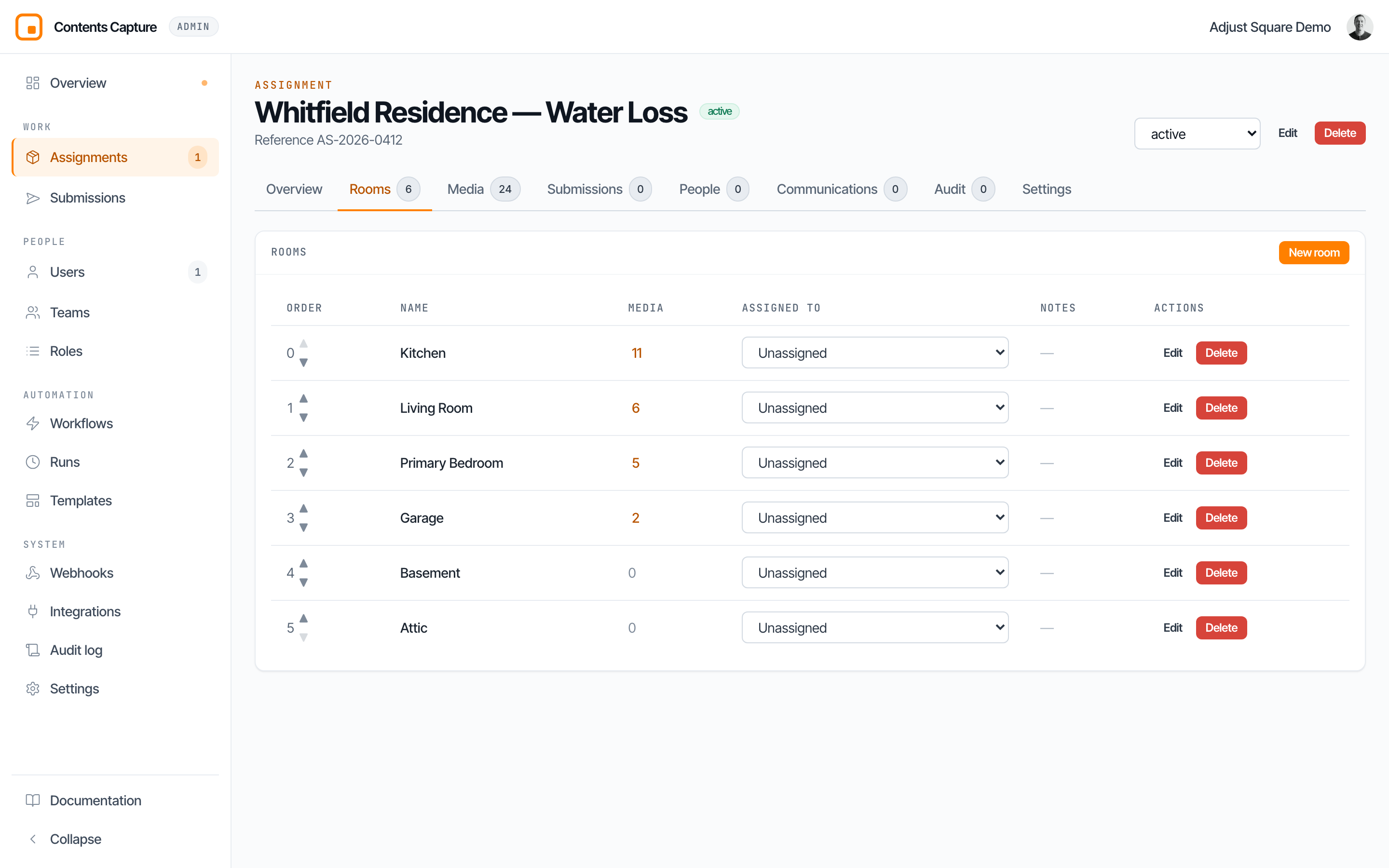
The media count is a link: click the number beside a room and Media opens filtered to it. A room with nothing in it shows a plain zero rather than a link to an empty list.
The Tags column labels individual rooms: "needs a return visit", "contents only". Tagging a room needs location.write, which every member has, so a capturer can label their own rooms. Room tags are independent of the job's, since "needs a return visit" is rarely true of the whole job. See Tags.
Rooms can be reordered, renamed, assigned to a person, and deleted. Deleting one never orphans its media: live items move to an "Uncategorized" room first. A room whose media has been submitted is locked.
Media
Every item captured on this assignment. Two layouts, switched at the right of the toolbar.
Cards is a grid of thumbnails that loads more as you scroll. Video and voice-note tiles carry a play badge and their length, so a video is never mistaken for a photo.
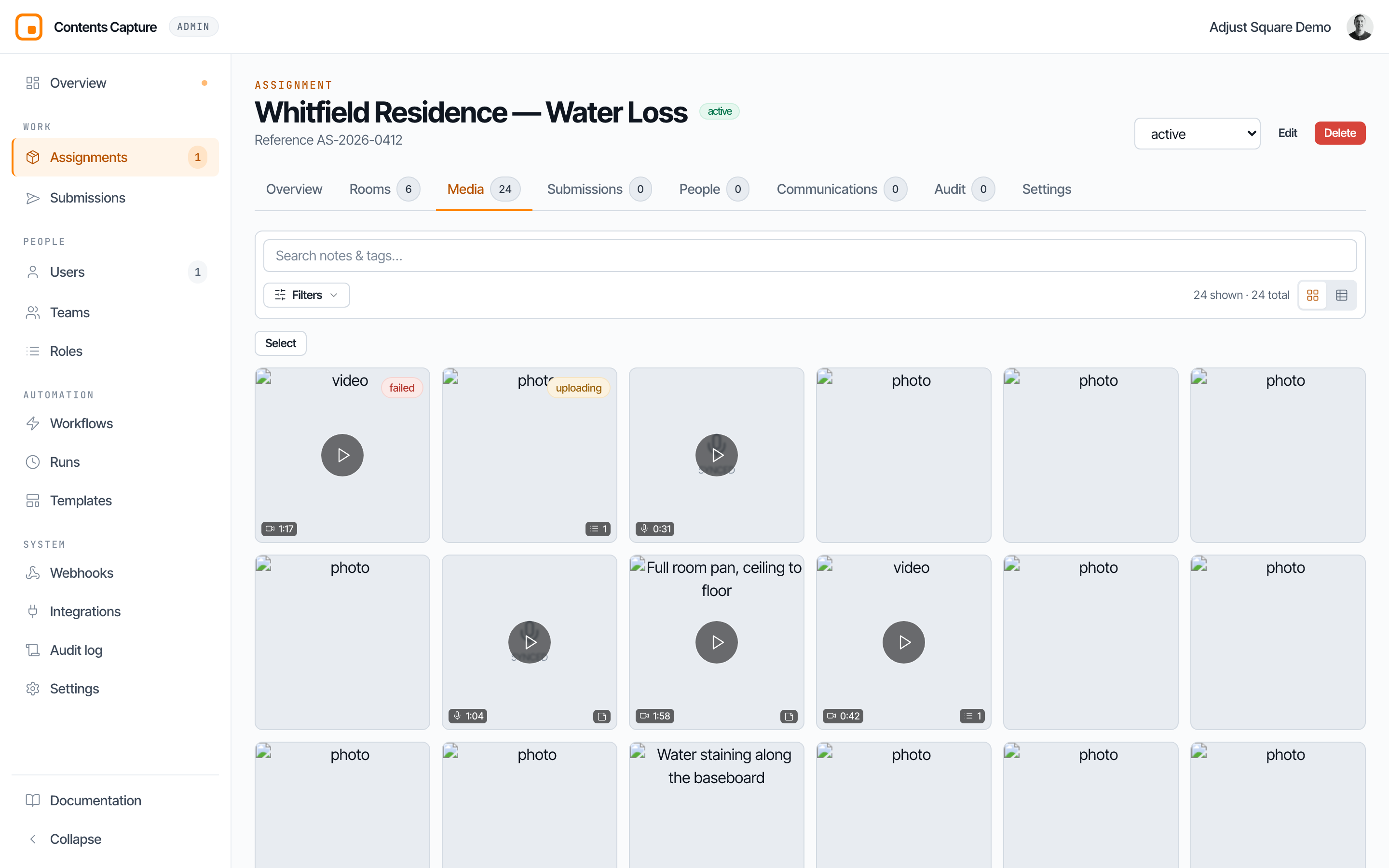
Table lists the same items one per row with their metadata, and pages explicitly.
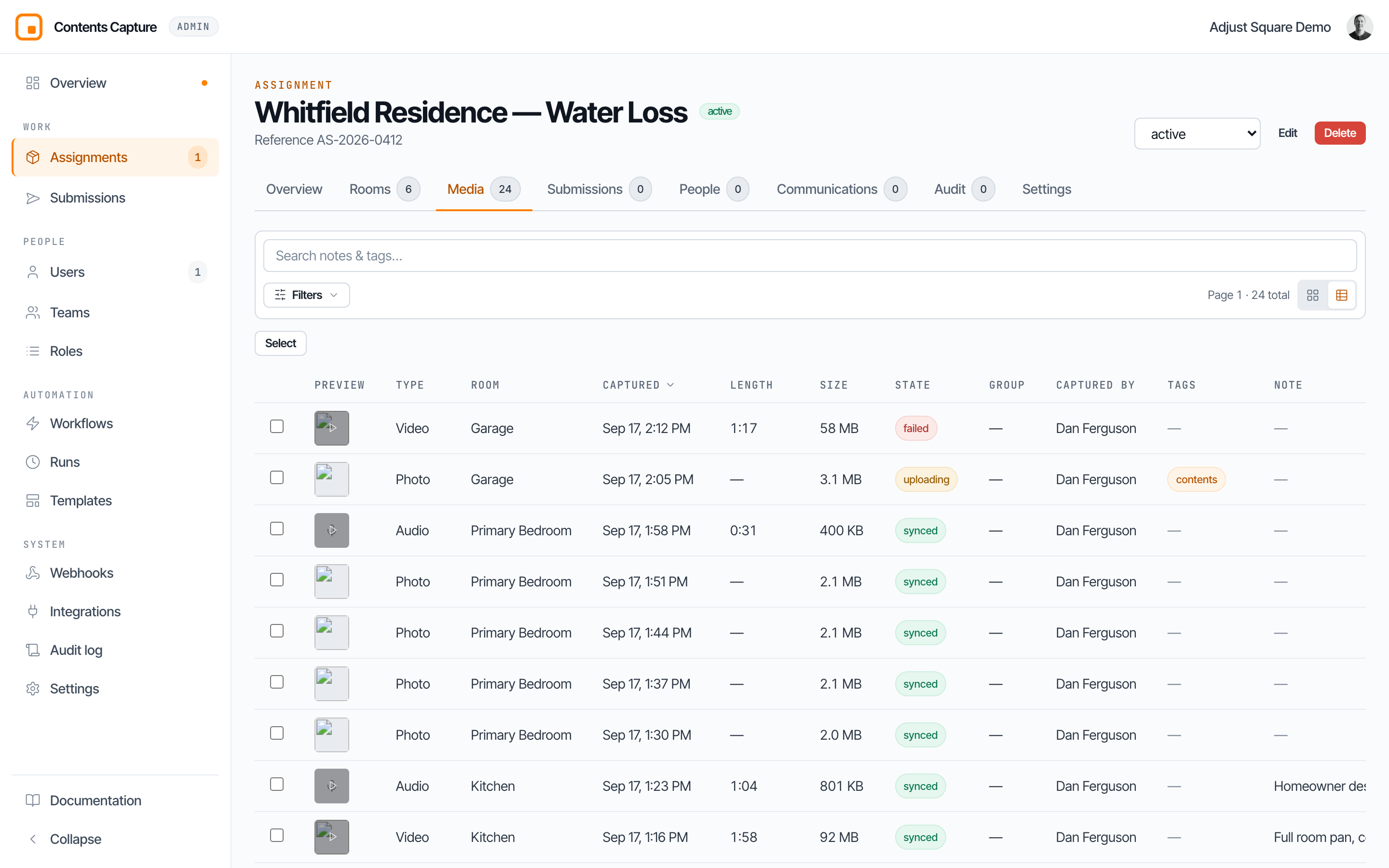
Click a column header to sort, and again to reverse it. Sorting is done by the server across the whole result set, not just the rows on screen, so "largest" is the largest in the assignment rather than the largest of what happened to load.
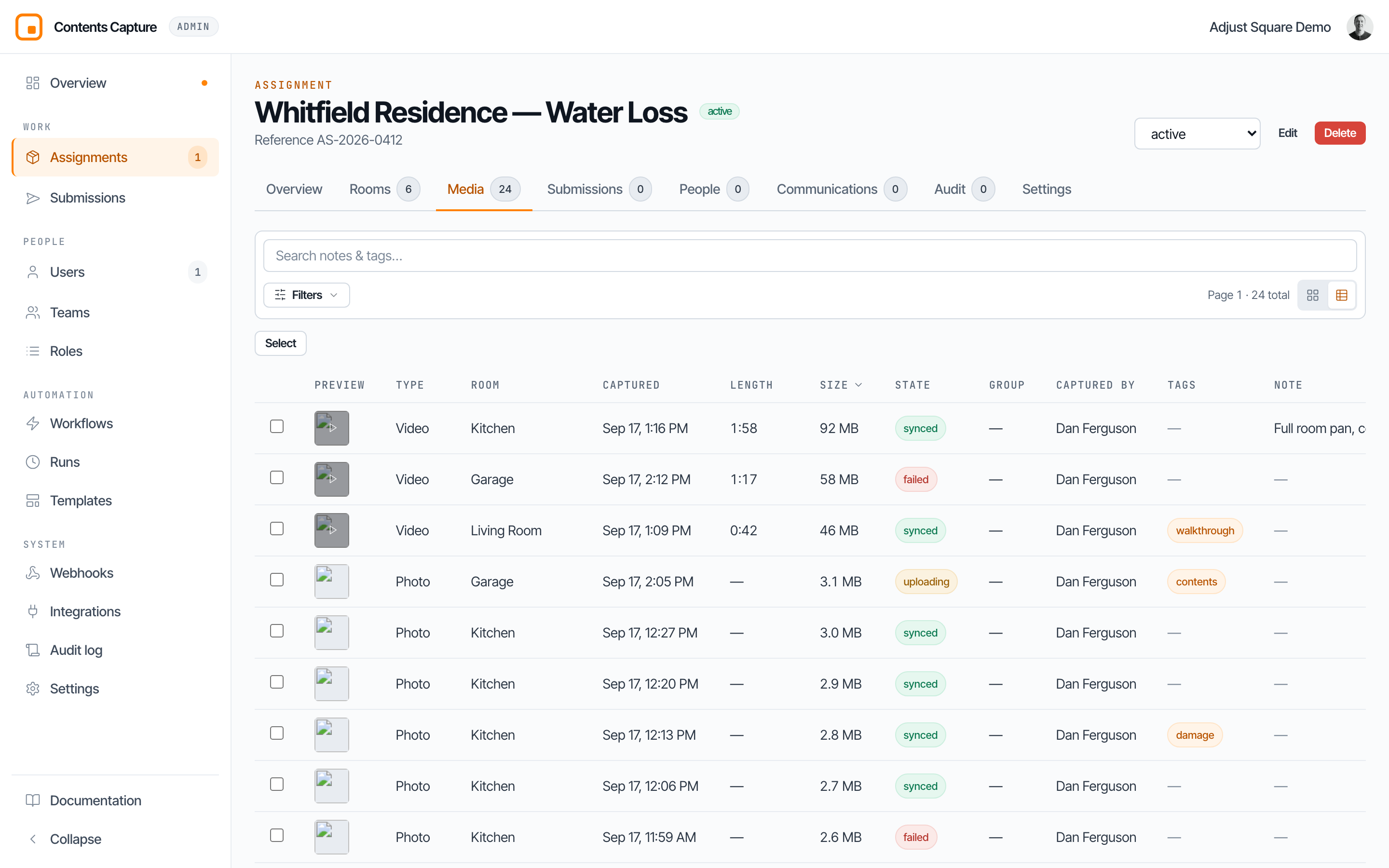
Type, room, capture time, length, size and sync state all sort. Capturer does not: it would only order by a hidden identifier.
Filters cover search, type, sync state, capturer, room, group, tags and has-notes. The layout, filters and sort all live in the address bar, so a link opens exactly the view you shared. Full detail in Submissions and media.
Submissions
Every hand-off from this assignment, newest first.
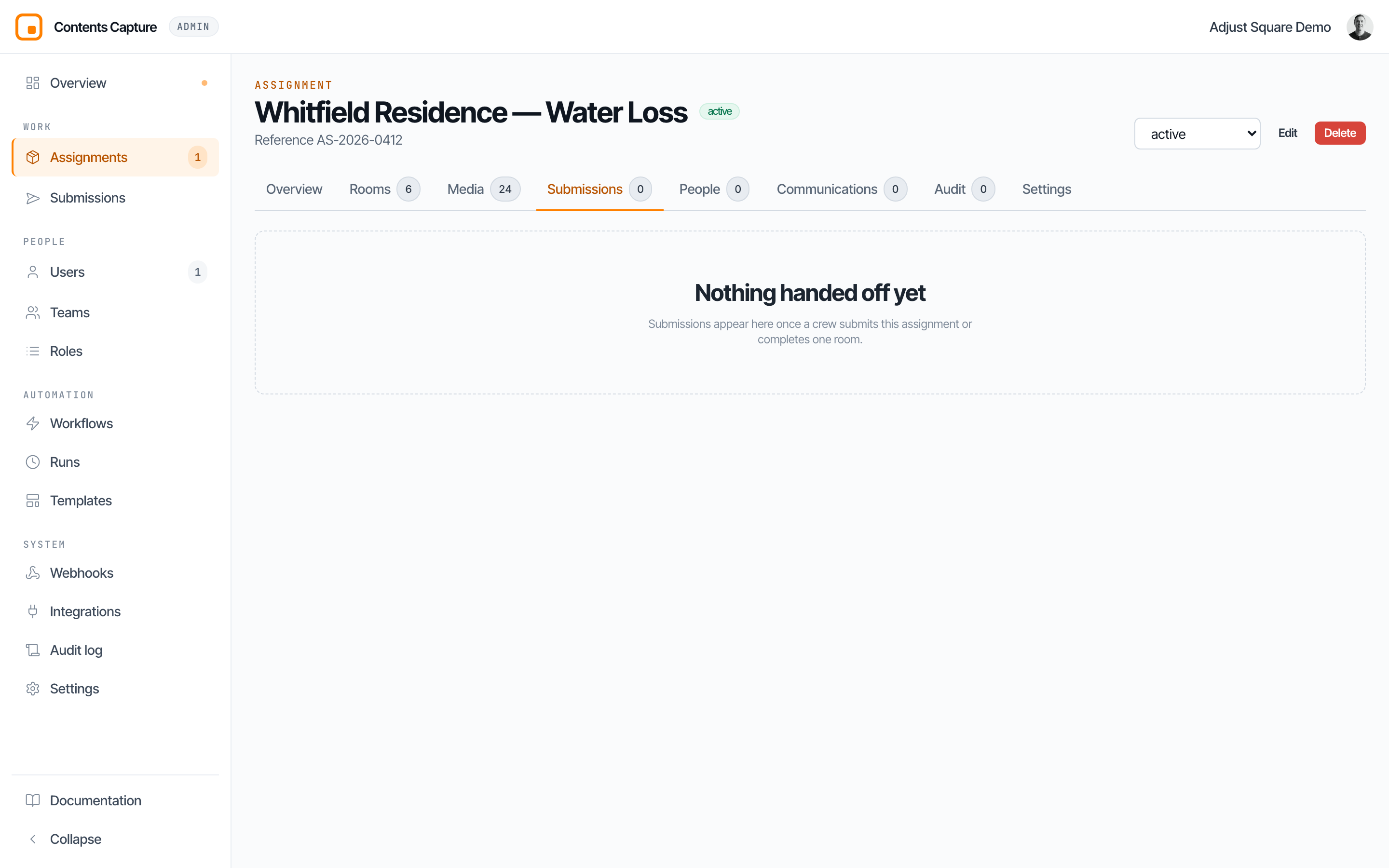
Each row gives the submission number, whether it covered the whole assignment or a single room, how many items it carried, who submitted it, when, and from which device and app version. A submission locks the media it names read-only, so this tab is the paper trail for that moment.
People
Who can see this assignment and who is working it, in one place.
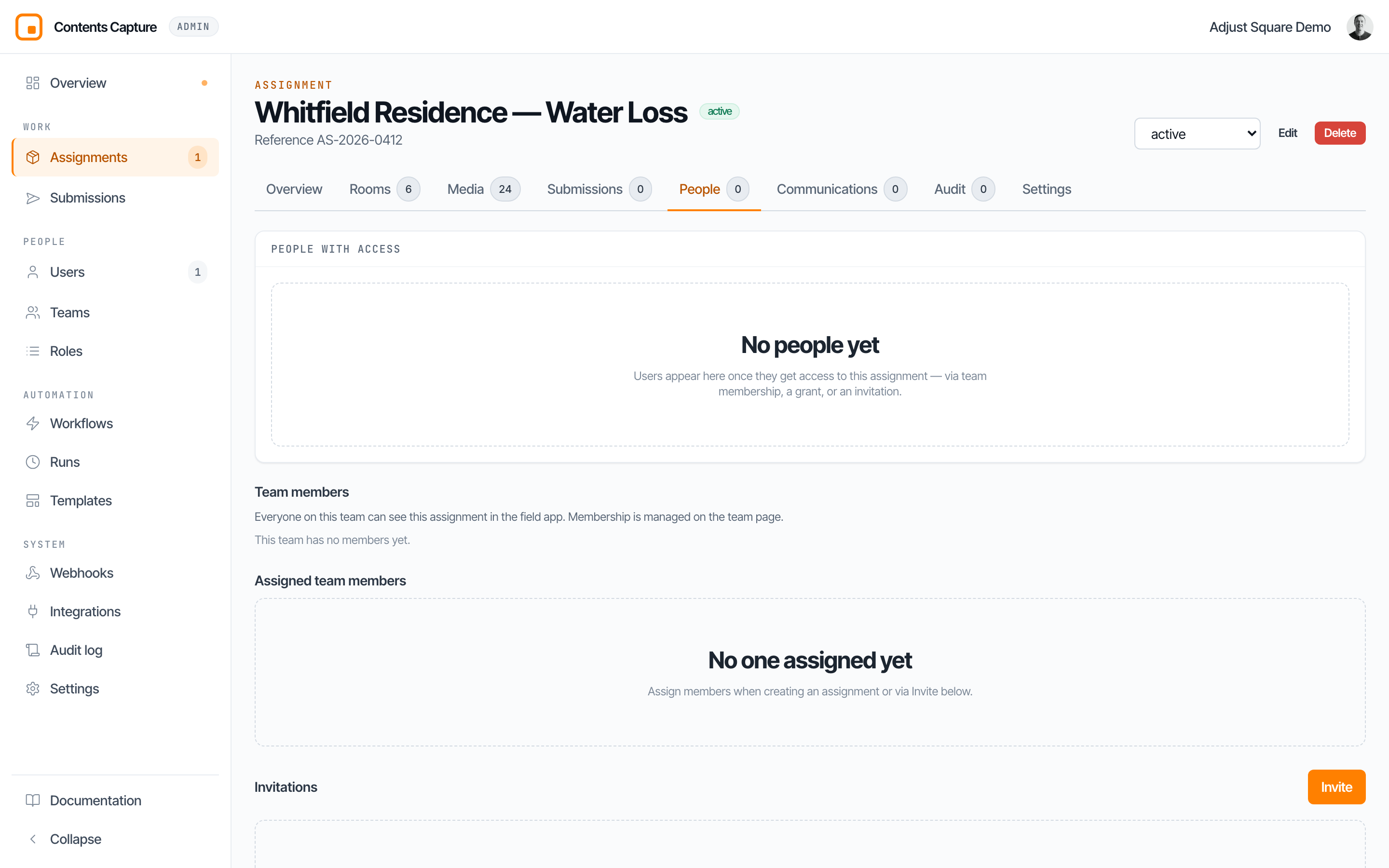
The top half is the presence view: each person's role, their capture activity, and their last-known device state. Invited-but-never-signed-in users appear with muted columns.
Below it is access itself: the crew's members, the assigned team members, and the invitations list with invite and revoke, gated on assignment.access.grant.
These were two tabs
Access and People answered one question from two sides. Old links carrying ?tab=access still work and land here.
Communications
Every email and SMS sent for this assignment, with its delivery ladder (sent, delivered, opened, clicked). "Simulated" means the provider is not configured, so nothing actually left the platform.
Audit
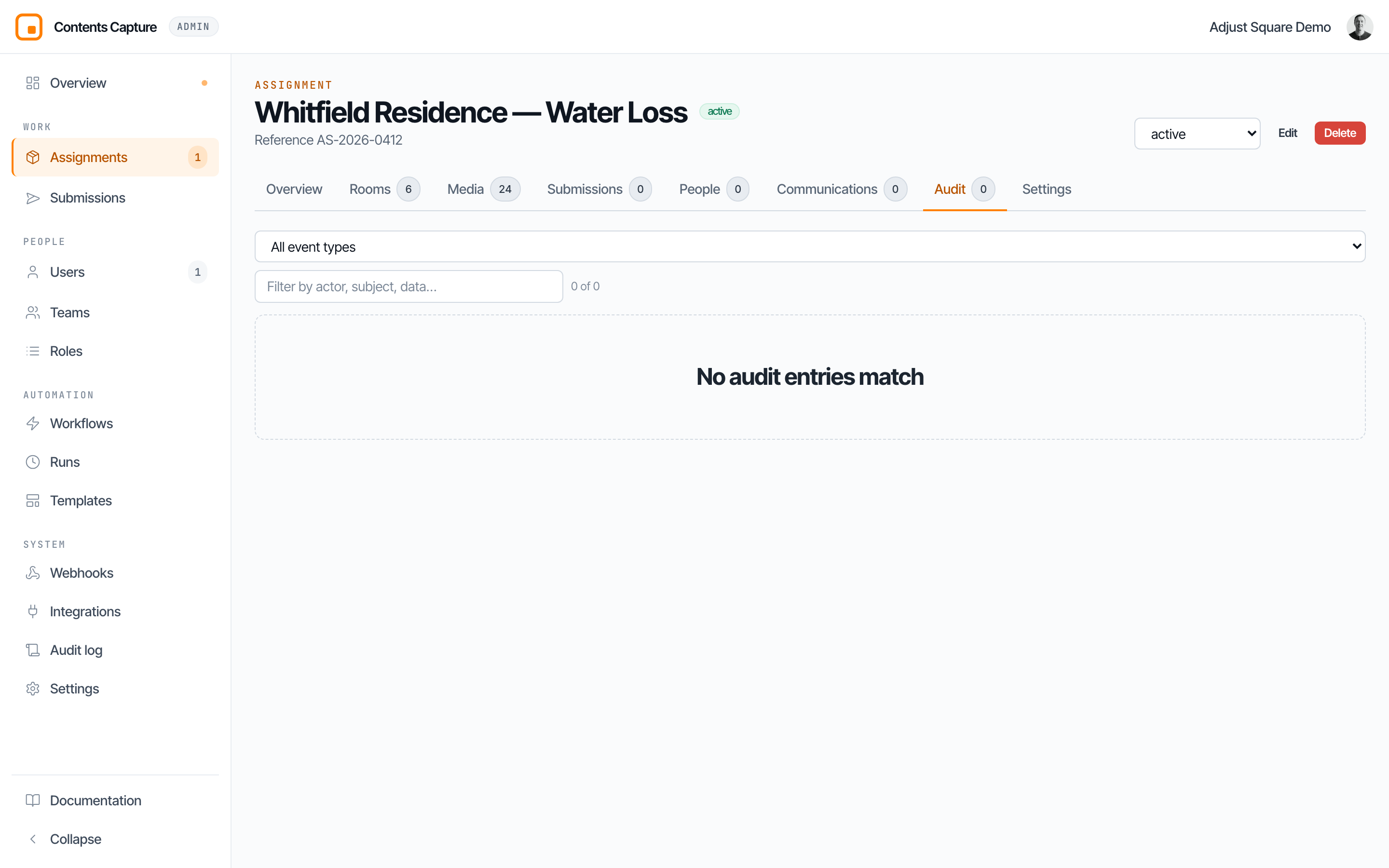
Everything that has happened to this assignment, filterable by event type and free text.
Settings
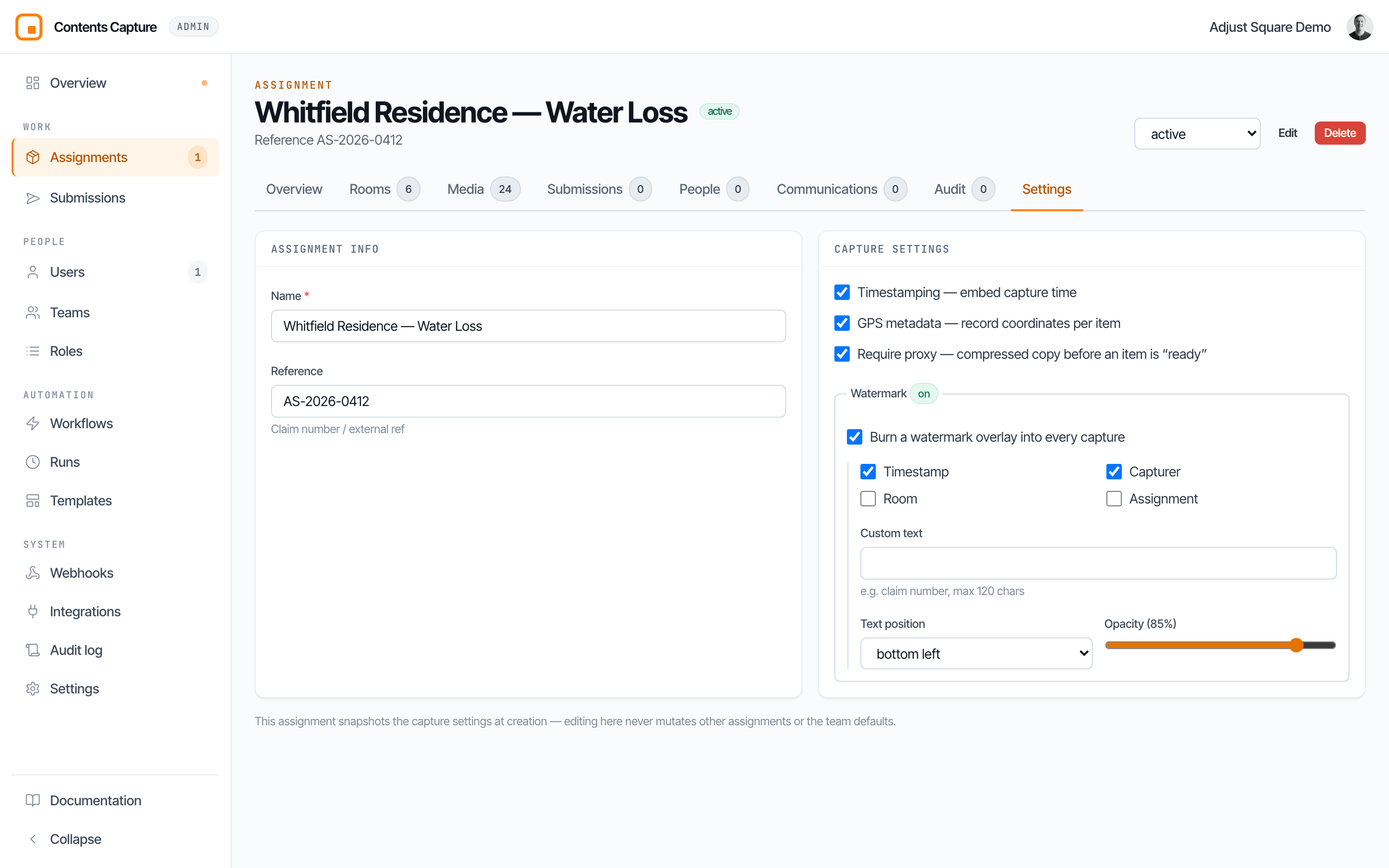
Core information and the capture settings that govern what the app does in the field.
Questions? Email [email protected] and a human will respond.