Appearance
Workflows
Workflows are event-driven automations: when something happens in ContentsCapture, a workflow can send messages, update statuses, or call webhooks, without anyone lifting a finger.
What workflows are
Every significant thing that happens in your org emits an event: an assignment is created, media is uploaded, a submission arrives. A workflow listens for one event, optionally checks conditions, and then runs actions. Three concrete examples:
- Submission alert: when a submission arrives, send an SMS to the team's admins so the desk knows field work just landed.
- Status notification: when an assignment status changes, email the claims inbox with the assignment name, reference, and new status.
- System sync: when media is uploaded, call your own system's webhook so your claim platform stays in sync.
The full list of events workflows can listen to is in Reference → Event types.
The Workflows list
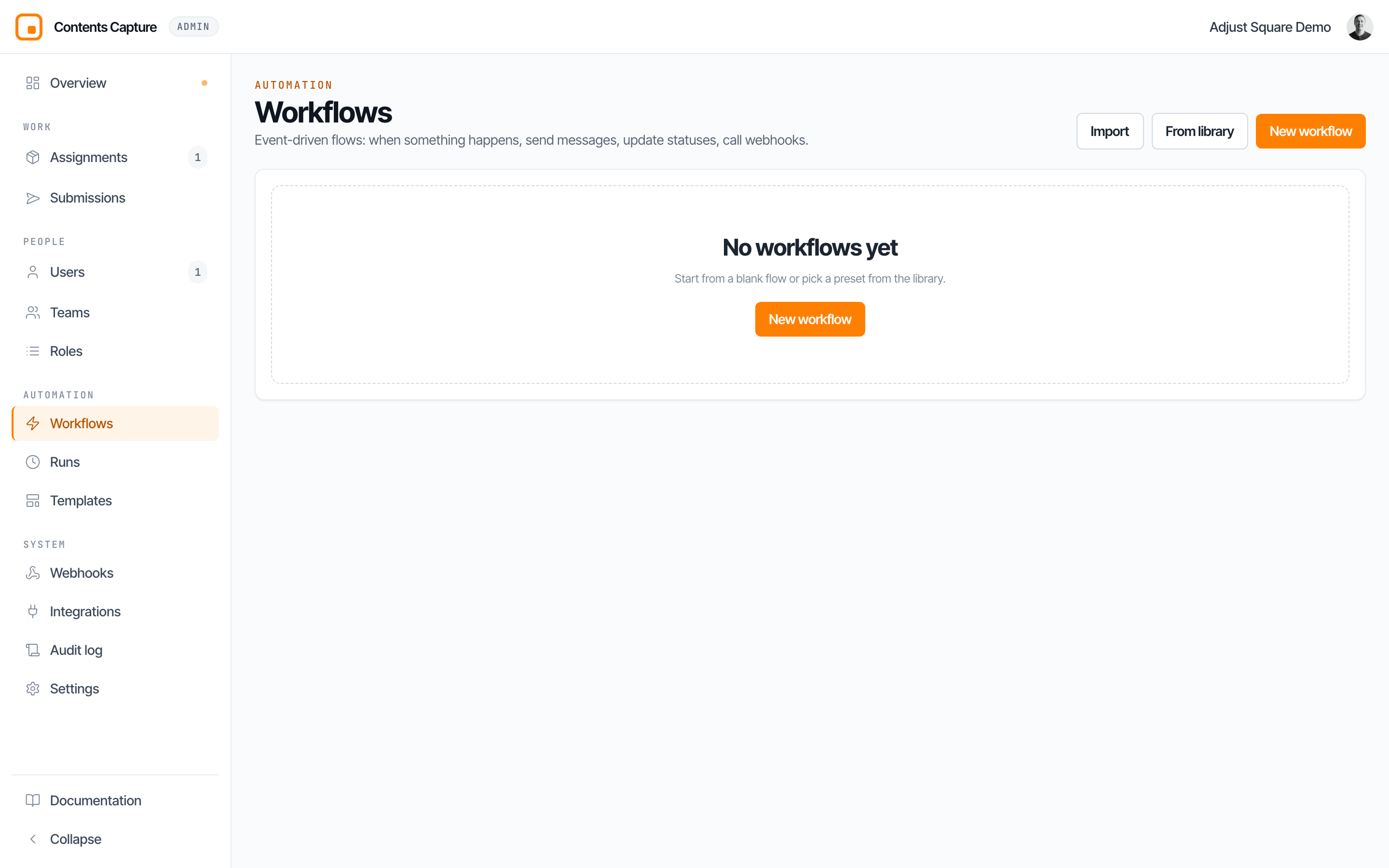
Open Automation → Workflows. The page describes itself: "Event-driven flows: when something happens, send messages, update statuses, call webhooks."
| Column | Meaning |
|---|---|
| Name | The workflow name. |
| Scope | Org-wide, a specific team, or a specific profile. |
| Enabled | Toggle to turn the workflow on or off without deleting it. |
| Runs | How many times it has run. |
| Last run status | Success, partial, or failed. |
| Updated | When it was last edited. |
Row actions: Edit, Duplicate, Export (downloads a .workflow.json file), and Delete (deleting a workflow keeps its message templates but removes its run history).
Header actions:
- New workflow: start from scratch.
- From library: start from a preset in the gallery, which is the fastest way to get a proven workflow running.
- Import: upload a
.workflow.jsonfile, handy for moving workflows between organizations or restoring an export.
Viewing the list requires audit.read; creating and editing requires team.manage.
Creating a workflow
The creation wizard walks through five steps:
- Template: start blank or pick a preset.
- Basics: name and describe the workflow.
- Scope: decide whether it applies org-wide, to one team, or to assignments built from one profile.
- Trigger: pick the event that starts the workflow, for example
submission.created. - Review: confirm, then open the builder to add conditions and actions.
The builder in plain terms
The builder is a visual canvas where each step is a node connected to the next. You do not need technical knowledge to read one: follow the arrows from the trigger at the top.
The trigger node
Every workflow has exactly one fixed trigger node. It holds the event type and optional filter rows, for example "only when the assignment's team is Sacramento CAT Crew". Filters keep workflows quiet so they only fire on the events you care about.
Condition branches
A Condition node splits the flow into true and false branches. Conditions are checks over values from the event, combined with AND, using operators like equals, for example "assignment status equals submitted". The true branch runs when all checks pass; the false branch runs otherwise.
Action nodes
- Send email / Send SMS: pick a message template or write an inline message. Inline messages support
{{variable}}chips that insert event data, for example the assignment name or the submitter's name, into the text. - Update assignment status: move the assignment to a new status automatically, for example setting in review when a submission arrives.
- Tag: put a tag on something, or take one off. See Tags in workflows below.
- Webhook: send the event to a URL of your choosing. You set the method, headers, and a JSON body template. The request is signed with your org webhook secret when one exists, so the receiving system can verify it came from ContentsCapture. See Webhooks.
Recipients
Email and SMS steps offer four recipient choices:
- The actor: the person who triggered the event, for example the adjuster who submitted.
- Team admins: the admins of the relevant team.
- Assigned crew members: everyone assigned to the assignment.
- Custom address: a specific email address or phone number you type in, such as a shared claims inbox.
Tags in workflows
Tags are the one thing a workflow can both read and write, which makes them the memory an automation otherwise does not have. A status can only be one value; a tag can record that a job has already been escalated, already been chased, already been counted.
Trigger on a tag
Five tag events are available as triggers:
| Event | Fires when |
|---|---|
tag.applied | A tag is put on an assignment, room, or media item. |
tag.removed | A tag is taken off one. |
tag.created | A new tag is defined for the organization. |
tag.updated | A tag is renamed or recoloured. |
tag.deleted | A tag is deleted. |
tag.applied is the useful one. Add a trigger filter on event.data.tags contains the tag name, and you have "when somebody marks a job urgent, do this". The person doing the tagging does not have to know the automation exists.
Branch on a tag
Two condition paths read tags:
assignment.tags: the tags on the job the event belongs to.subject.tags: the tags on the exact thing the event was about, when that thing can carry tags. On a media event it is the photo; on a room event, the room.
Use the contains operator, which matches one tag in the list exactly:
assignment.tagscontainsLarge loss
On an event whose subject cannot carry tags (a user, an invitation), subject.tags is simply absent, so the condition is false rather than an error.
Apply a tag
The Tag action node has three settings:
- What to tag: the assignment (the job the event belongs to) or what triggered it (the exact photo, room, or job the event was about). When you choose "what triggered it" and the event was about something untaggable, the step is skipped, not failed, and the run still counts as a success.
- Action: add these tags, or remove them.
- Tags: picked from your organization's registry, or typed to create a new one.
A tag that is already there, or already gone, is left alone. The step is safe to run repeatedly and reports "already carries" rather than churning the record.
A workflow's own tags never retrigger it
Tags applied by a workflow are recorded as system actions, and system actions never start another workflow. A flow that tags on tag.applied cannot spin.
Worked example: escalate and remember
When a submission is created and the assignment is tagged
Large lossand the assignment is not taggedEscalatedthen email the claims desk, and tag the assignmentEscalated.
The last step is what stops the desk being emailed again on the second submission. Without it, the workflow has no way to know it has already fired.
Testing before enabling
Every node has "Test this step", which runs just that step with sample data. You can also fire a full test run of the whole flow before enabling it. Test runs are clearly badged in the runs feed so they never look like real activity. Always run at least one full test before turning a workflow on.
Validation
The builder validates the flow as you work and blocks saving a broken workflow: loops, unreachable nodes, missing recipients, and unfinished templates are all flagged before the Save button will cooperate. A saved workflow is always a runnable workflow.
Runs
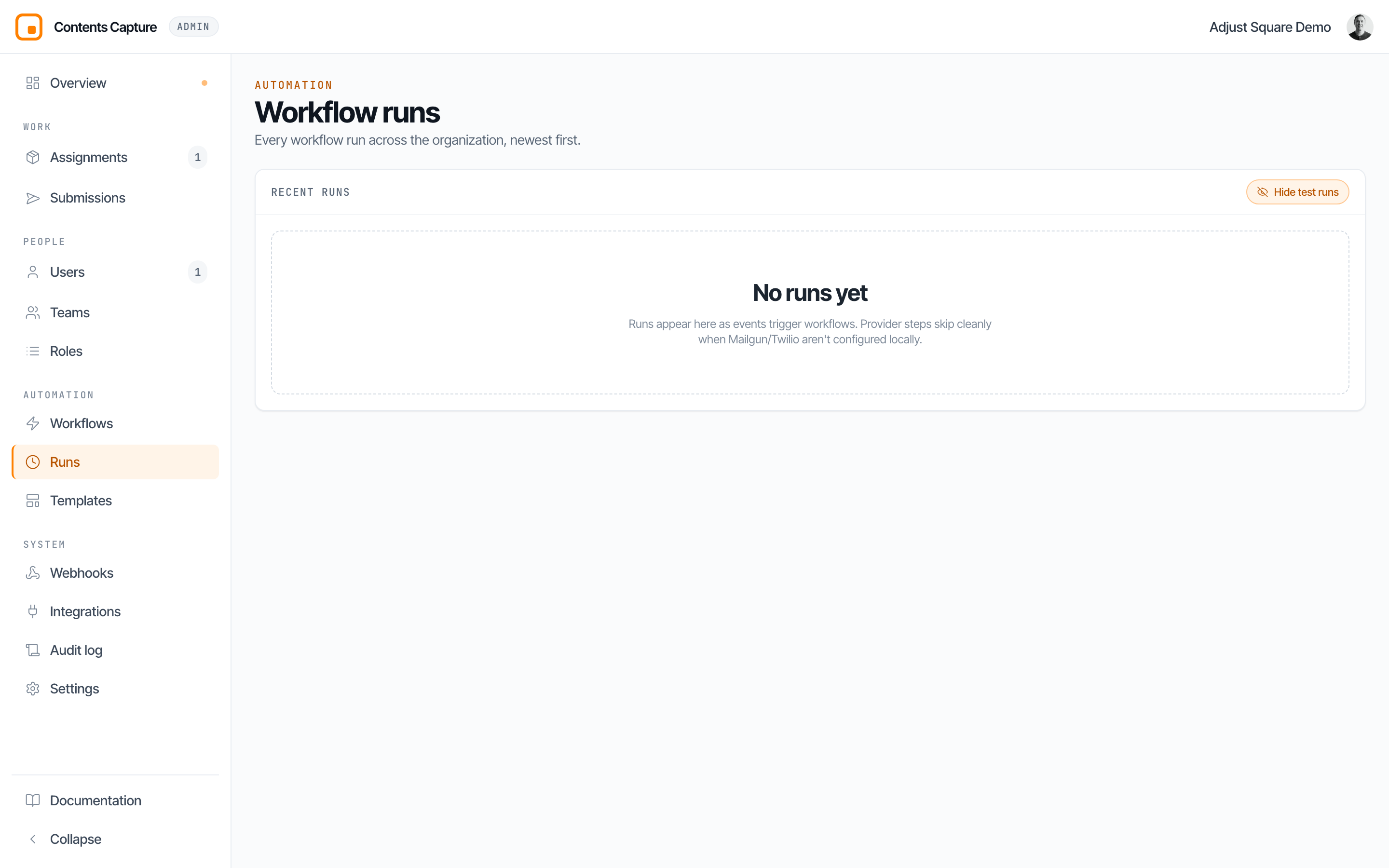
The Runs pages show every execution:
- Automation → Runs: org-wide feed of all workflows.
- A workflow's Runs action: runs for that workflow only.
Both poll every 10 seconds. Columns: Started, Workflow, Status (with a "Test" badge on test runs), Duration, Assignment link, and an Error preview when something went wrong. The Hide test runs toggle is on by default in the org-wide feed and off on per-workflow feeds.
Click a run to open the run detail drawer: a per-step timeline showing exactly what each node did and where a failure happened. From the drawer you can replay a run, which re-executes it, useful after you have fixed whatever made it fail.
Good first workflows
- Submission SMS to team admins (
submission.created): the classic. The desk knows instantly when field work lands. - Status-change email to the claims inbox (
assignment.status_changed): keeps the claim file current without manual email. - Failure alert (
media.upload_failed): notify team admins when uploads fail so connectivity problems get fixed before evidence sits on a device. - Webhook to your claim system (
media.uploadedorsubmission.created): keep your system of record in sync automatically. - Escalate on a tag (
tag.applied, filtered to one tag): the desk gets an email the moment anyone marks a job urgent, without having to remember to tell them. - Flag stalled uploads (
media.upload_failed): tag the assignmentUpload problemso it shows up in a filtered Assignments view, not just in someone's inbox.
Runs
Runs is the log of every workflow execution: which workflow fired, when, on what, and whether each step succeeded. It is where you look when an automation did not do what you expected.