
Appearance
Custom dashboards
A custom dashboard is a saved view of the Assignments list, pinned to the sidebar. Your dashboards sit under Dashboard, so the lists you check every day are one click away.
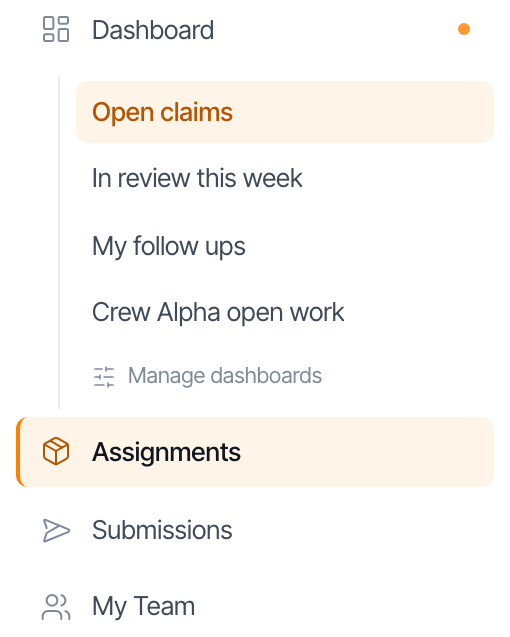
Click one and Assignments opens with that view applied: its filters, its sort, and its columns. Nothing is copied. If someone updates the view, every dashboard pinned from it shows the change.
Pin a view
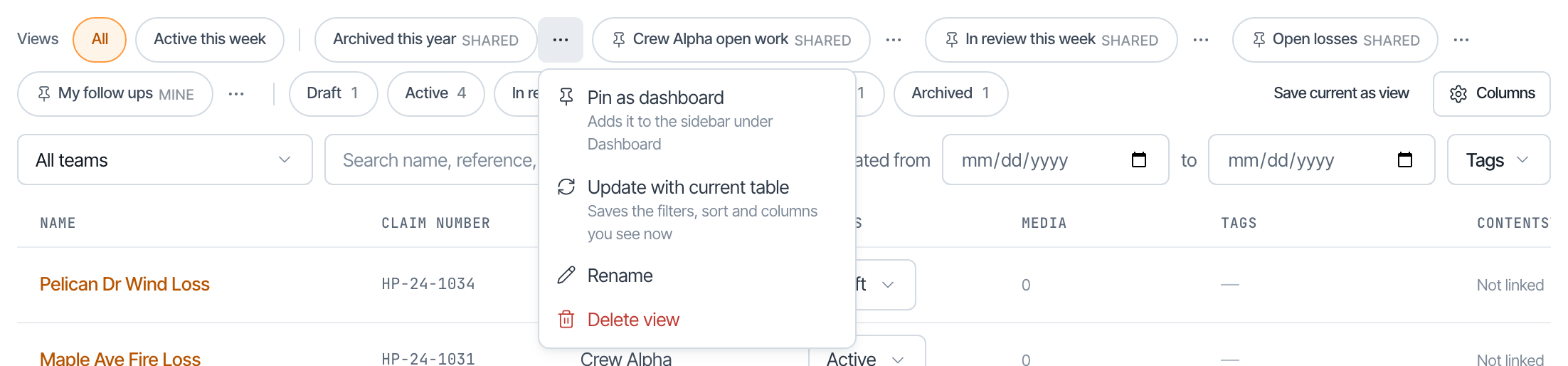
- Open Assignments and find the saved view in the views bar. To make a new one, see Views bar.
- Click the ... button beside the view.
- Choose Pin as dashboard.
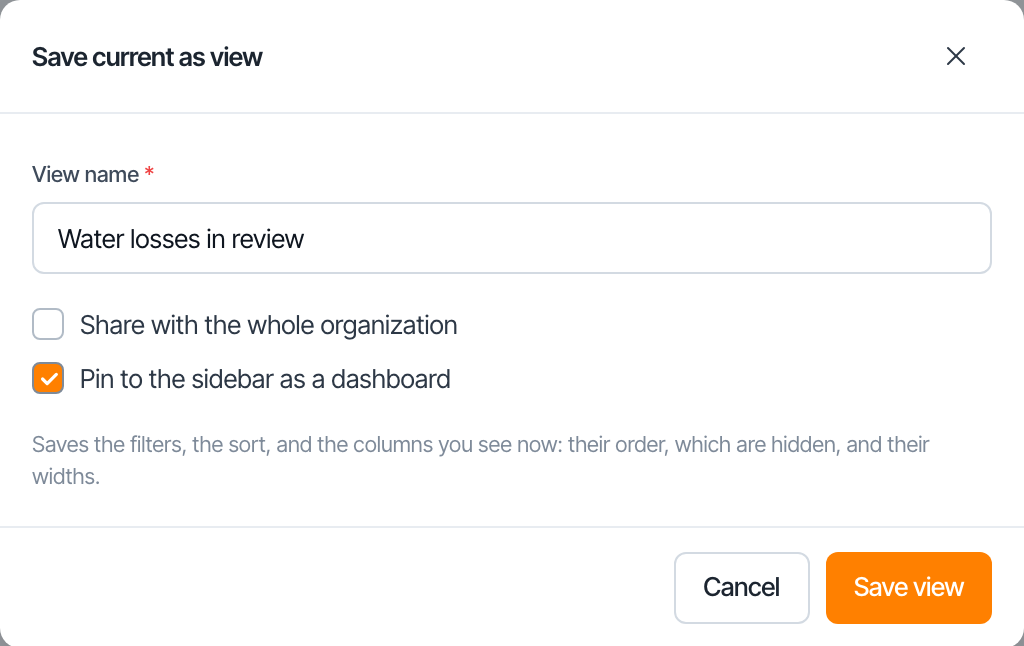
You can also tick Pin to the sidebar as a dashboard when you save a new view.
You can pin any view you can see: your own, or one shared with the organization. Each person can have up to 10 dashboards. At 10, Pin as dashboard is greyed out until you unpin one.
Manage your dashboards
Click Manage dashboards at the bottom of the list in the sidebar.
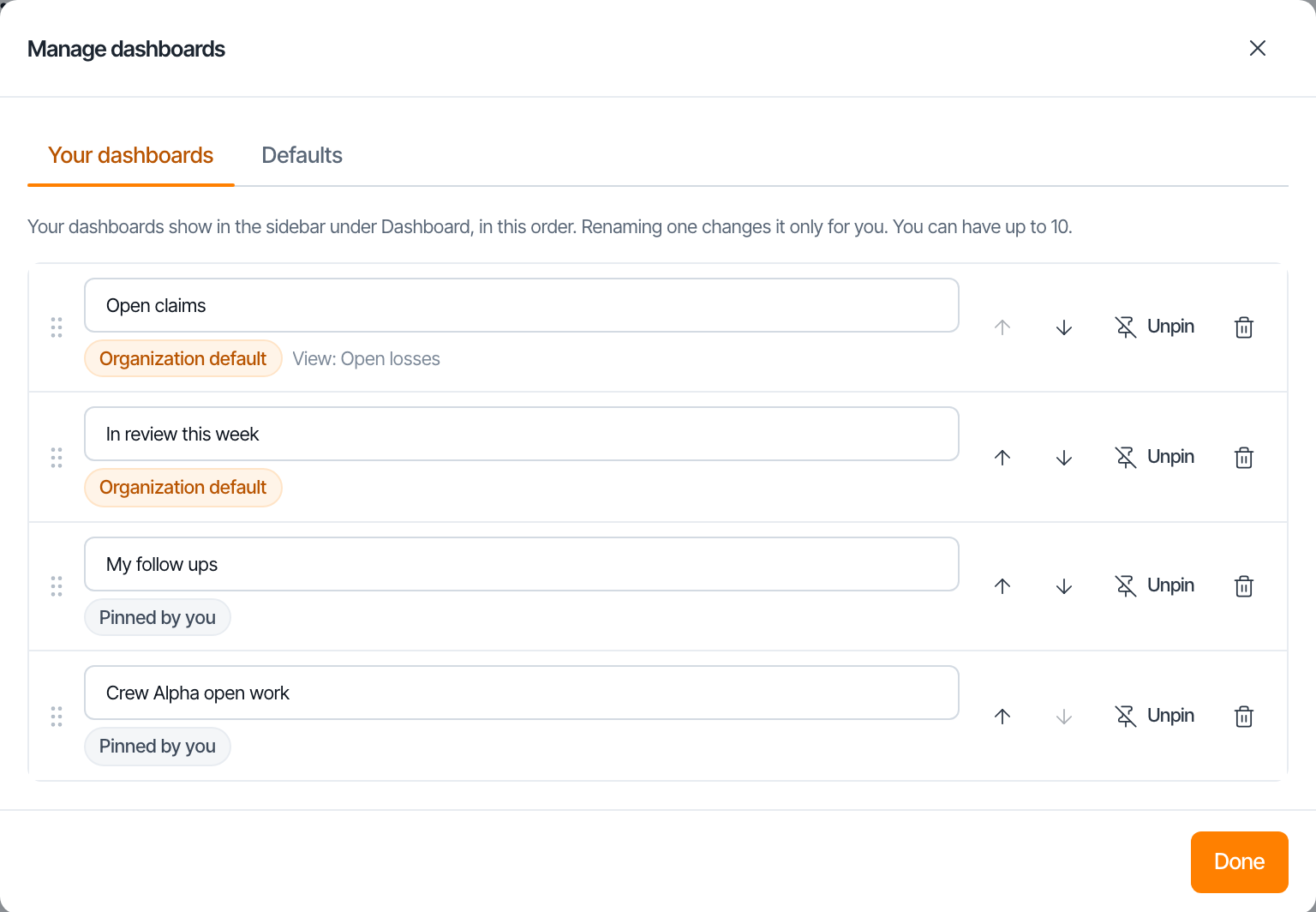
- Rename: type in the name box and press Enter. The new name is only for you; the saved view keeps its own name, shown beside it. Clear the box to go back to the view's name.
- Reorder: drag a row by its handle, or use the up and down arrows. The sidebar follows this order.
- Unpin: takes it off your sidebar. The saved view stays.
- Delete (the bin): deletes the saved view itself, and removes it from everyone's dashboards. It only shows for views you are allowed to delete. You are asked to confirm first.
The label under each name says where the dashboard came from: Pinned by you, or a default from your organization, business unit or team.
Default dashboards
Admins can choose dashboards that everyone at their level gets without pinning anything:
| Level | Who can set it |
|---|---|
| Whole organization | Org admins |
| A business unit | Org admins |
| A team | Org admins, and that team's team admins |
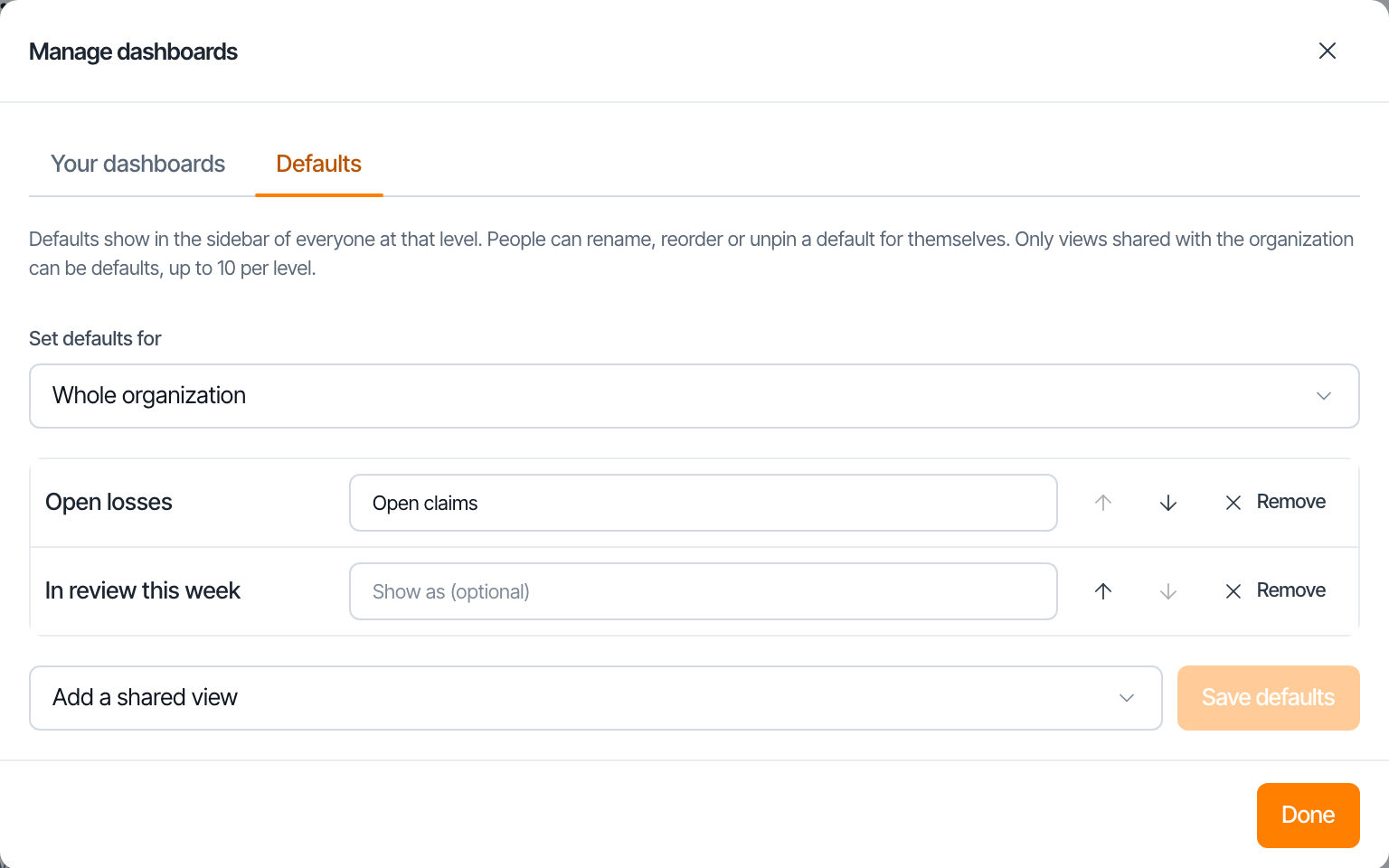
To set them:
- Click Manage dashboards in the sidebar.
- Open the Defaults tab. It only shows if you can set defaults somewhere.
- Under Set defaults for, pick the level.
- Use Add a shared view to add views. Only views shared with the organization can be defaults, up to 10 per level.
- Optionally type a name in Show as to show the view under a different name. Reorder with the arrows, or Remove one.
- Click Save defaults.
How defaults and your own pins combine
Everyone sees the defaults of every level they belong to (their organization, their business unit, and their team), plus their own pins.
- When two levels set the same view, the more specific one wins: a team's name and position beat the business unit's, which beat the organization's.
- Your own changes always win. You can rename, reorder or unpin a default for yourself. Unpinning a default hides it only for you; pin the view again to bring it back.
- A dashboard disappears when its saved view is deleted, or when a shared view is made personal by someone else.
- The sidebar shows at most 10 dashboards.
Questions? Email [email protected] and a person will get back to you.